Scheduled tournaments & countdown
There are two ways to begin a tournament in UHT, and they suit different evenings.
Start manually creates the tournament ready to go, and it waits for you to press play. Schedule for later sets a start time, puts a countdown on the display, and can begin the tournament by itself when the time arrives.
Starting manually
The default. Press Start on a configuration and you get:
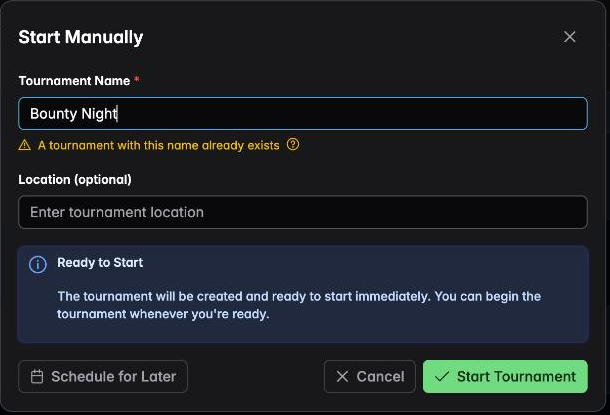
Name it, optionally record the location, and press Start Tournament. The notice says what happens: the tournament will be created and ready to start immediately. You can begin the tournament whenever you're ready.
Note the distinction — created, not running. The clock does not move until you press start on the display. Nothing is lost while people are still arriving.
This suits a home game, where the tournament starts once everybody is seated.
Scheduling for later
Press Schedule for Later and the dialog changes:
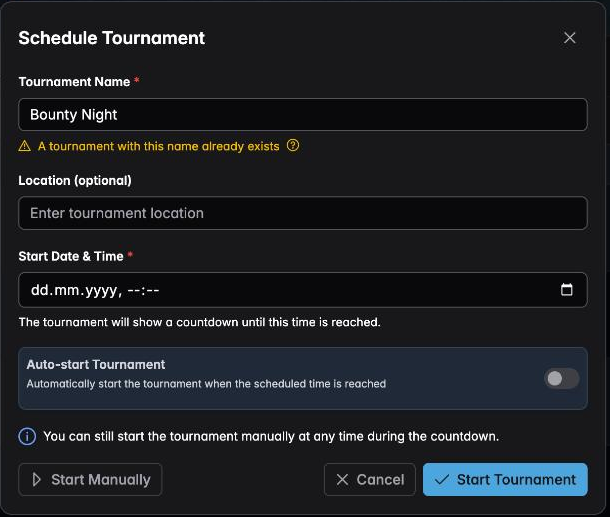
Start Date & Time is the only extra required field, and the line beneath it explains what it produces:
The tournament will show a countdown until this time is reached.
Open the display and it shows time remaining until the start, rather than a stopped clock. Put that on the TV as people arrive and nobody has to ask when you are starting.
Auto-start
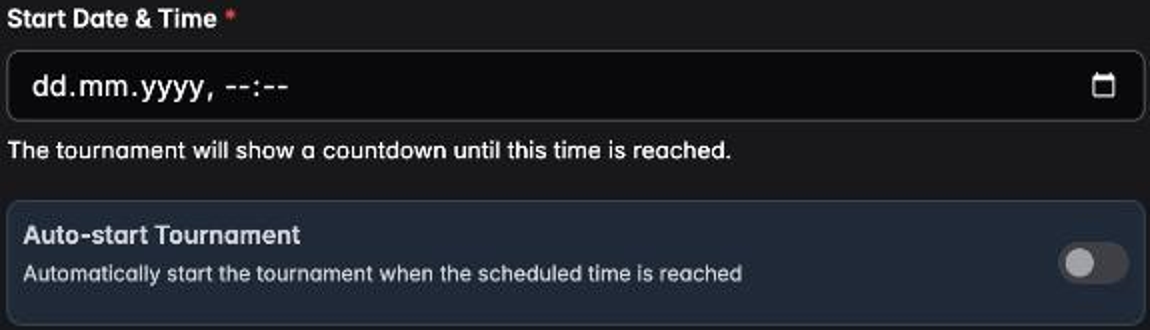
Auto-start Tournament — automatically start the tournament when the scheduled time is reached.
Leave it off and the countdown reaches zero and waits for you. Turn it on and level 1 begins by itself.
The line underneath is the important one: you can still start the tournament manually at any time during the countdown. Scheduling never traps you. If everybody arrives early, press start.
Which to use
Manual for a game that starts when it starts. Most home games.
Scheduled, auto-start off for an announced start time you want to hold people to, while keeping the decision yourself. The countdown does the social work — "we start at 8" is much more persuasive on a large screen than said across a room — and you still choose the moment. This is the right setting for most club nights.
Scheduled, auto-start on for a fixed-time event where you may be busy elsewhere: a charity night, a venue that starts on a schedule, a multi-room event. The tournament begins whether you are standing at the laptop or not.
With auto-start on, the tournament begins at the appointed time even if half the field is still in the car park. It also begins with only the players you have registered. If your turnout is unpredictable, leave auto-start off.
Where scheduled tournaments live
A scheduled tournament sits under Planned, labelled with its start mode:
The Not Started and Manual Start / Auto Start badges tell you which behaviour is configured, so you can check at a glance the day before.
From here you can still open the timer, pre-register players, enable multi monitoring, or edit the whole thing.
Schedule a Tournament at the bottom of the Planned tab creates a scheduled tournament directly, without going via a configuration's Start button.
Using the countdown well
Put the display up early. The countdown is only useful if people can see it. Open the display on the TV as soon as you arrive.
Schedule slightly later than you mean. A countdown that hits zero while people are still buying in is worse than one that expires with everyone seated.
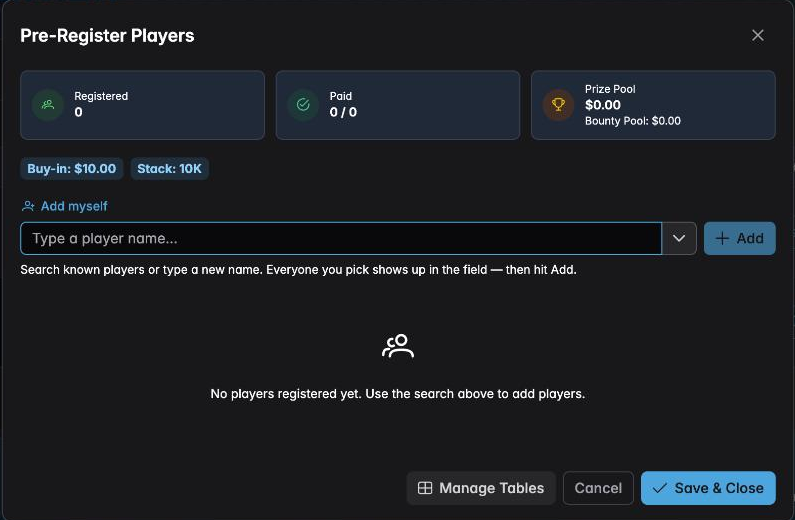
Combine it with pre-registration. A countdown plus a registered field is a tournament that genuinely starts on time: no queue at the door, no seat draw to do.
Multi monitoring works during the countdown. Connected screens show it too, so a venue with three TVs shows the same countdown on all of them. See Multi monitoring.
Next
- Pre-registering players — have the field ready before the countdown ends
- Display QR code — let arrivals put the countdown on their own phones
- Your first tournament — the whole flow end to end