Show the clock on more than one screen
Multi monitoring puts the tournament clock on the big TV while you control everything from your phone in your pocket. No laptop parked next to the telly, no walking over to pause the timer.
It also means a second screen in another room can show the same clock, in sync, to the second away.
You need a free UHT account for this — see UHT account benefits.
How it fits together

One device is the controller — normally the phone in your pocket. Everything you change goes to UHT's servers, which pushes it out to every connected screen. The screens report back, which is how they all stay on the same second rather than drifting apart.
You never connect one screen to another directly, which is why they don't need to be on the same wifi — only on the internet.
What changes when you turn it on
This is the one thing worth understanding before you start.
Normally your tournament runs entirely inside your browser. Nothing leaves your device. You can run as many tournaments like that as you want.
With multi monitoring on, the tournament is hosted on UHT's servers instead — that's how several screens can talk to each other and stay in sync.
That hosting is what the plan limits are about:
| Free | Supporter | Commercial | |
|---|---|---|---|
| Screens connected at once | 2 | 5 | Unlimited |
| Hosted tournaments at once | 1 | 1 | 3 |
Two devices on Free is exactly enough for the common case: the TV showing the clock, and your phone controlling it.
Free and Supporter can host one multi-monitor tournament at a time. If you try to enable it on a second tournament, UHT stops you:

Disable it on the first tournament and you're free to enable it on the next. This limit is only about hosted tournaments — ordinary local tournaments are unlimited on every plan.
Turning it on
Find your tournament under Planned or Active Tournaments and press Multi Monitor.
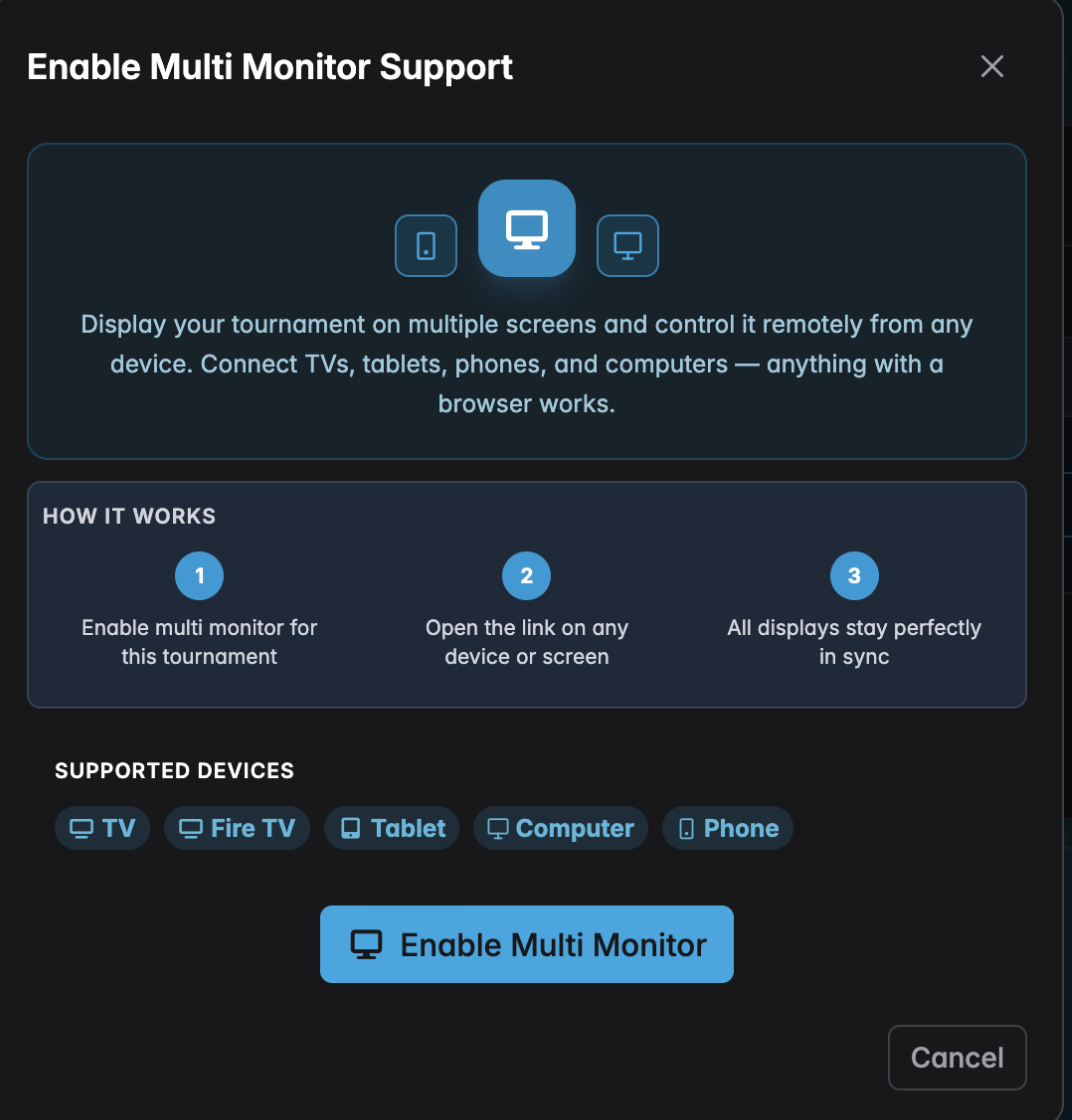
The dialog spells out the shape of it: enable it here, open the link on any other device, and every display stays in sync.
Press Enable Multi Monitor. You can also do this mid-tournament from the display's controls menu — look for Enable Multi Monitoring.
Opening a tournament lobby turns multi monitoring on by itself, and it cannot be turned off again while that lobby exists — both features work on the same server-side copy of the tournament. Such a tournament therefore occupies one of your parallel multi-monitor slots until it starts or its lobby is closed.
Connecting the other screens
Once enabled, UHT hands you two links — and a QR code for each:
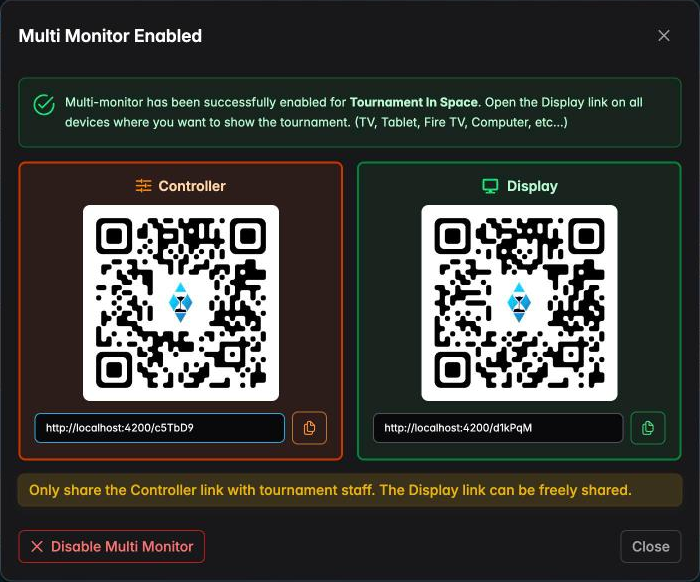
- The Display link (green) is the one you open on every screen that should show the clock. It's safe to share — whoever opens it can watch, not change.
- The Controller link (orange) runs the tournament. Only give that one to people you want touching the clock.
Open the display link in a browser on whatever you want to show the clock on. That's the whole connection process — no app to install. (On a TV, there is an even shorter way — see the tip below.)
Anything with a browser works: a smart TV, a Fire TV stick, a tablet propped on the bar, an old laptop, another phone.
Typing a URL with a TV remote is slow and error-prone, and the QR code does not help here — a television cannot scan one. So on a TV, turn it around: open uht.app/connect in the TV's browser instead. It shows a six-digit code; you type that code on your phone, and the TV jumps to the clock by itself. See Pairing a TV with a code below.
The QR codes are for the easy cases: phones, tablets and laptops. Point a phone camera at the display code and it joins in a second — which is how you'd hand a second screen to someone at the table, or get the controller onto your own phone.
Pairing a TV with a code
The display link is fine for anything with a keyboard. A television has a remote. For that, UHT lets the TV ask to be added rather than making you type the link into it.
- On the TV, open uht.app/connect in its browser. That is the whole address — short
enough to type once, and worth bookmarking. The screen shows a large six-digit code like
123 - 456. - On your controller, open the Tournament Controls, tap Manage Displays, then Add Display.
- Type the code from the TV and press Connect. The TV switches to the tournament display on its own.
The code changes every ten minutes while the TV waits, and stops working the moment the TV leaves the page, so a code someone glimpsed earlier is no use later.
After the first pairing UHT remembers the screen on your account, so the next tournament is a single tap on its name — no code. When a tournament ends, a remembered TV goes back to uht.app/connect by itself, ready for the next one.
Both halves have a page of their own:
- Connect a TV with a code — what the television shows, what the status line means, and how the code behaves.
- The Add Display dialog — the controller side: your remembered screens, renaming them, and every message it can give you.
Displays and controllers
Connected devices come in two flavours, and the difference matters.
Display devices show the clock. They're the TV in the corner. A display in display-only mode can't change tournament settings — if you try, UHT tells you to use a controller instead. That's deliberate: you don't want someone brushing the TV's touchscreen and skipping a level.
Controller devices run the tournament. This is your phone. Add players, record knockouts, pause, jump levels — everything you'd normally do at the laptop.
One useful consequence: event notifications only appear on display devices, not on controllers. The "Level up!" banner belongs on the TV everyone is watching, not on the phone in your hand.
Keeping screens in sync — or not
Some settings have a mirror switch next to them — the little monitor icon with a toggle, and a device picker set to All:
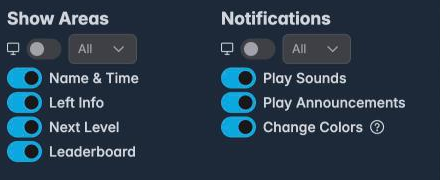
When the toggle is on, changing that setting updates the devices chosen in the dropdown. When it's off, the change only affects the screen you're looking at. The picker lets you target one specific device, or All to change every screen at once.
This is more useful than it sounds. Two examples:
- Volume. Mirror it off, and the TV in the main room plays sounds while the quiet overflow room stays silent.
- Design. Mirror it off, and the big TV runs your full-detail design while a small secondary screen shows a stripped-back one that's readable from across the room.
Managing the connected screens
On a controller, the tournament controls grow a Manage Displays link showing how many devices are connected. Tap it:
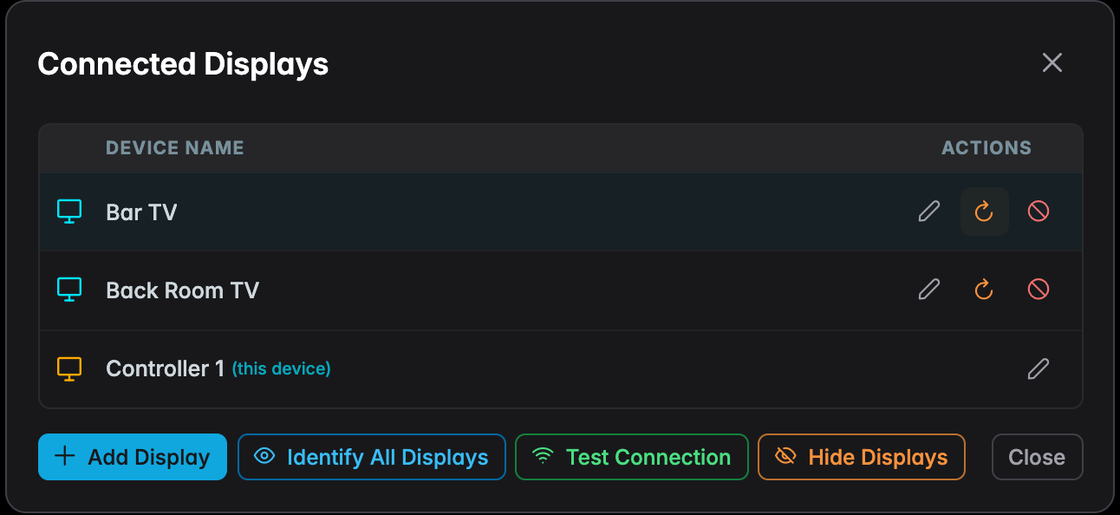
Every connected device gets a row, and the one you're holding is marked (this device). Each row has three actions:
- ✏️ Rename — call it "Bar TV" or "Back room" so you can tell them apart. Well worth doing the moment you have more than two.
- ↻ Refresh — reloads that screen remotely. The first thing to try when one display looks stuck.
- ⊘ Disconnect — drops that device. Use it to free a slot when someone left a tab open.
The buttons along the bottom:
- Add Display — adds a screen by the code it shows on uht.app/connect, or sends one of your remembered screens to this tournament. See The Add Display dialog.
- Identify All Displays — flashes a big number on every screen at once, so you can see which physical TV is "Display 2" without walking round unplugging things.
- Test Connection — pings every device and shows how long each took to answer:
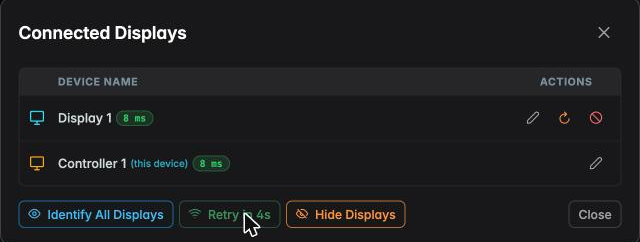
Single-digit milliseconds is a healthy screen. If one device reads far higher than the others, that's the one with the wifi problem — not UHT.
- Hide Displays — stops showing the connection count on the display itself, for when you don't want the badge on screen during play.
The gold buttons
On a controller, four gold buttons appear in the tournament controls. The colour is the clue: gold means multi monitoring. Anything gold relates to your connected screens rather than to the device in your hand.

- ⚡ Update Clients — pushes this device's tournament state to every connected screen.
- 🎮 Open Remote Controls — opens the command centre (next section).
- ☁️ Update from Server — pulls the current state down from UHT's servers onto this device.
- 🖥️ Manage Multi Monitoring — the enable/disable dialog and the links again.
Getting every screen onto the same second
Screens normally stay in step by themselves. But if you've paused, scrubbed the level time or jumped a level and one screen didn't take it — or you're just about to start the final level and want everything exactly right — use buttons 1 and 3. They're two directions of the same fix:
- The clock on this device is the correct one → press ⚡ Update Clients. Every other screen snaps to it.
- The clock on this device is the wrong one → press ☁️ Update from Server. This device pulls the true state back down.
Either way the screens land within a second of each other. If you're not sure which device is right, look at the display everyone's been watching all night — that's usually the truth.
Before the final table, hit ⚡ Update Clients once. It takes a second and removes any chance of the TV and your phone disagreeing about how long is left.
The command centre
The gamepad button — Open Remote Controls — is where you actually run a multi-screen tournament from your phone. It replaces the clock with a control panel:
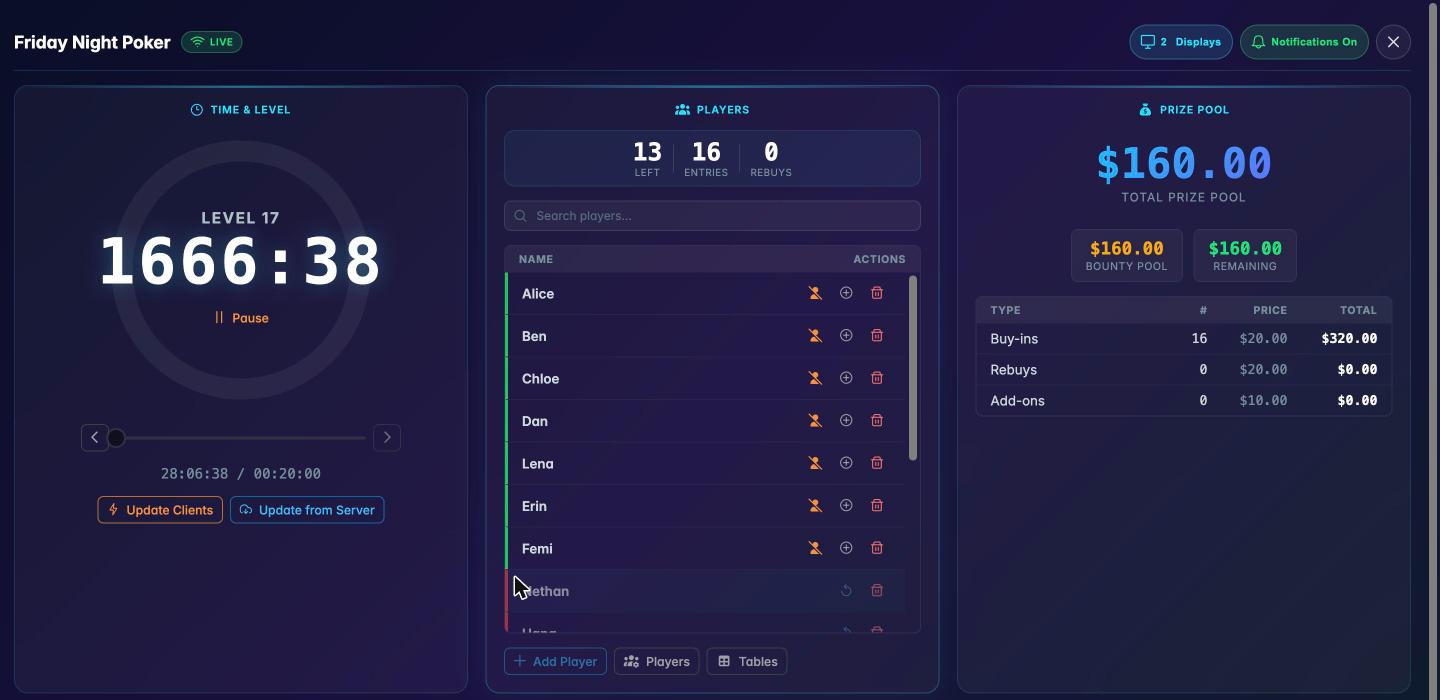
The header tells you the state of the connection at a glance:

- LIVE — you're connected. It changes to Syncing or Reconnecting if the link wobbles, so you always know whether your last tap actually landed.
- 2 Displays — opens the Connected Displays dialog described above.
- Notifications On / Off — see below. This one's worth understanding.
The cards
⏱ Time & Level — the big one. Start, pause and resume; step a level forward or back; drag the slider to move within the level. Update Clients and Update from Server sit right here too, which is where you'll use them most.
👥 Players — everyone in the tournament, searchable, grouped by table. Bust a player, re-enter them, or remove them entirely, each from a single row. Add Player for new buy-ins. This is the card you live in during a bounty tournament.
💰 Prize Pool — the total, the bounty pool, what's left, and the breakdown of buy-ins, rebuys and add-ons. Read-only, but it's the number people ask about most.

🏆 Prize Distribution — who's in the money and for how much, filled in with names as players finish.
📚 Level Structure — the current blinds and ante, and whether rebuys are still open. Useful when someone asks "can I still rebuy?" from the other end of the room.
Announcements — messages on every screen
The Announcements card sends text to your displays, where it appears as a large overlay:
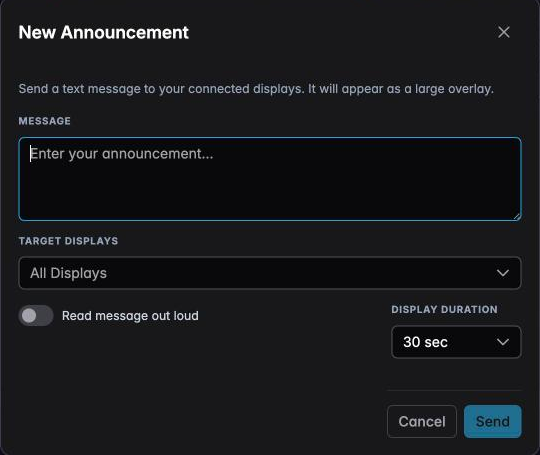
- Message — whatever you want on screen. "Cash game starting at table 3", "Last call at the bar", "Back in 10".
- Target displays — all of them, or just one. Handy when the message only concerns the back room.
- Read message out loud — the displays speak it as well as showing it. Good for a room where nobody's looking at the TV.
- Display duration — how long it stays up before fading.
Everything you've sent is listed under the button, so you can see what's currently on screen.
This is what lands on the TV:
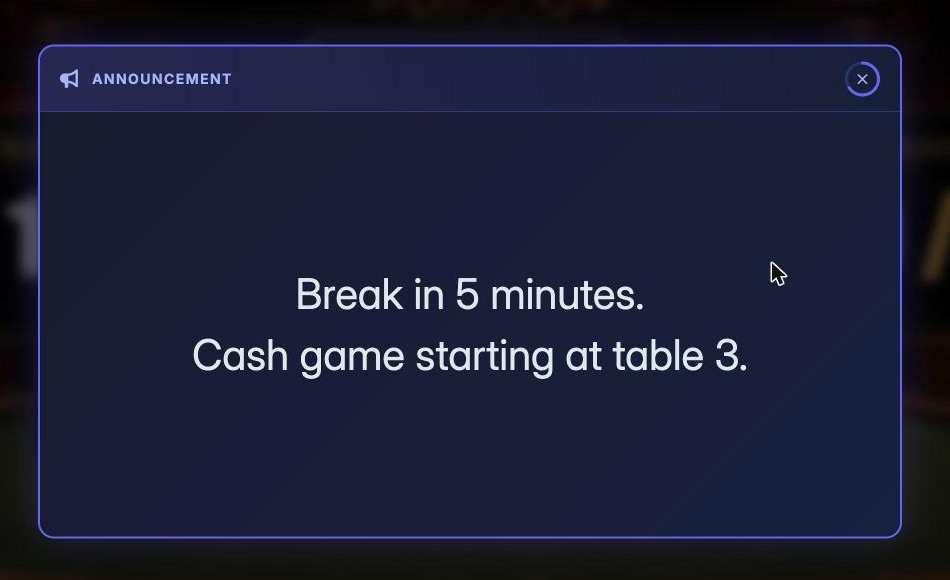
It's deliberately large and unmissable — it covers the clock while it's up, then fades out and the display goes back to normal.
Player-event notifications
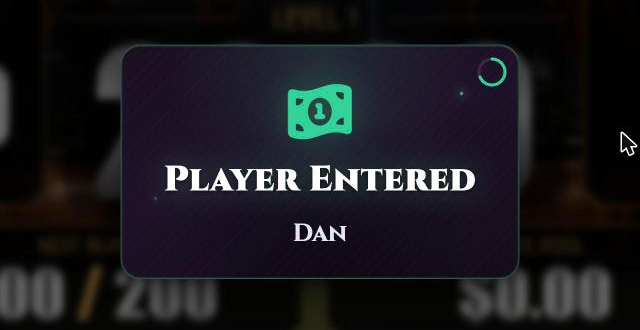
The Notifications On / Off button in the header controls something different: the automatic banners UHT shows when something happens — a player buys in, someone gets knocked out, a bounty is claimed.
Switch it on and those pop up on the TVs by themselves. A player buying in:
And a knockout, which is where the feature is most valuable in a bounty game:
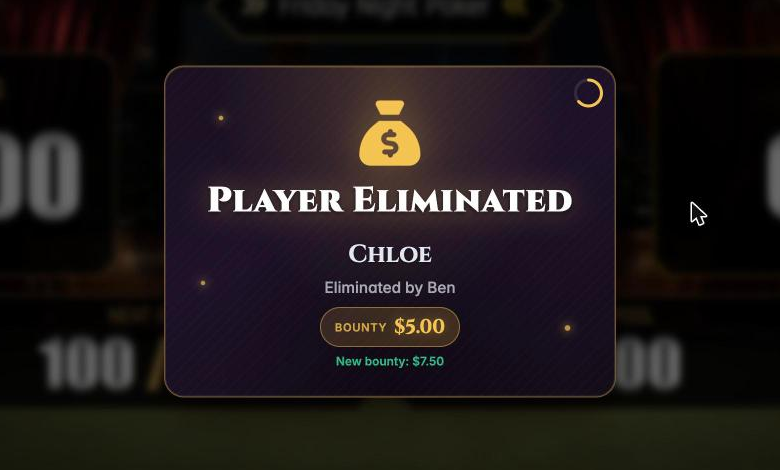
The whole room sees who went out, who took them out, what the bounty was worth, and what the eliminator's own head is now worth — without you announcing a word of it. The ring in the corner counts down how long the card stays up before it fades.
Switch it off for a quiet, clock-only screen.
If the built-in cards don't suit your display, the display designer lets you build notification overlay layers that replace them entirely — your own layout, fonts and colours for each event.
The banners appear on display devices only. Your controller phone stays clean — you're the one causing the events, so you don't need telling.
Sound and announcements
If you want spoken announcements on a connected screen, announcements must be enabled in the tournament's sound settings (wizard step 9). You don't need to add any specific sound events — just having announcements on is enough for multi-monitor announcements to work.
Bear in mind each device does its own talking, so a room with two connected screens will hear it twice unless you mute one.
When the tournament ends
Finishing the tournament closes the multi-monitor connection and disables all the remote controls. The screens stop being live.
That also frees up your hosted-tournament slot, so you can enable multi monitoring on the next tournament straight away.
Which devices and browsers work
Showing the clock and staying in sync needs WebSockets, the technology that lets a screen receive updates without reloading. That's been standard in every browser since about 2013, so in practice anything you'd plug into a TV today works.
Browsers
| Browser | Works since |
|---|---|
| Chrome / Edge | ✅ 2011 (Chrome 16) |
| Firefox | ✅ 2012 (Firefox 11) |
| Safari (Mac) | ✅ 2013 (Safari 7) |
| Safari (iPhone / iPad) | ✅ 2012 (iOS 6) |
| Opera | ✅ 2012 (Opera 12.1) |
| Samsung Internet | ✅ 2016 (v4) |
| Internet Explorer | ❌ Retired — use Edge |
TVs and streaming devices
Smart TVs ship a browser that is frozen at manufacture and never updated, so the TV's model year is what matters, not its age on your wall.
| Device | Clock & sync | Animated text effects |
|---|---|---|
| Fire TV Stick (Silk browser) | ✅ | ⚠️ may stutter |
| Android TV / Google TV / Chromecast | ✅ | ⚠️ may stutter |
| Samsung TV — 2022 or newer (Tizen 6.5+, Chromium 85+) | ✅ | ⚠️ may stutter |
| LG TV — 2022 or newer (webOS 22+, Chromium 87+) | ✅ | ⚠️ may stutter |
| Samsung / LG TV — 2018–2021 | ✅ | ❌ |
| Samsung TV — 2017 (Chromium 47) | ✅ | ❌ |
| Samsung / LG TV — 2016 or older | ⚠️ WebKit-era browser, expect problems | ❌ |
✅ works · ⚠️ works with limits · ❌ not supported
The short version: any TV from 2017 onwards will show the clock and stay in sync. What older TVs lose is the decorative extras — animated text effects in particular — not the timer itself.
If your television predates roughly 2018, or its built-in browser is difficult to use, add a Fire TV Stick or Chromecast. Its browser will be considerably newer than the television's, and entering the display link is far easier.
If effects stutter
UHT watches its own performance on each display. If a screen starts struggling it turns off animated text effects first, and then all text effects, showing a brief notice when it does. Reloading the page starts again with everything enabled.
You can also just switch that one screen to a simpler design — with mirroring off, the change affects only that device.
If a screen won't connect
- Check the device limit. Free allows two devices, Supporter five. UHT tells you when you've hit it. Close a browser tab you're not using and try again.
- Check you're not over the parallel limit — see the box near the top of this page.
- Both devices need internet. Multi monitoring goes through UHT's servers; two devices on the same wifi with no internet won't find each other.
- Still stuck? Something not working? explains how to send us a connection test.
Which settings does a connected device use?
Every device — the controller and each display — starts from the same three layers: the design's own defaults, the session owner's default settings, and whatever the director has changed from the tournament controls. Devices that are not logged in receive the owner's defaults when they connect, so a TV in the bar shows the same formatting as the owner's laptop. A change you apply to a single device stays with that device, including across its reload; a mirrored change applies to every device.
Next steps
- UHT account benefits — required for multi monitoring
- Pricing — device and parallel-tournament limits per plan
- Display designer — add a QR code so people can join by pointing a phone