Connect your assistant
Every assistant connects the same way: you give it the UHT address, and the first time it uses it, your browser opens so you can sign in to UHT and approve the connection. There are no passwords or keys to copy. You only do this once per assistant.
The address is always:
https://ultimate-holdem-timer.com/mcp
Pick your assistant below. If yours is not listed, any other app explains the general way. The landing page shows the same instructions with copy buttons:
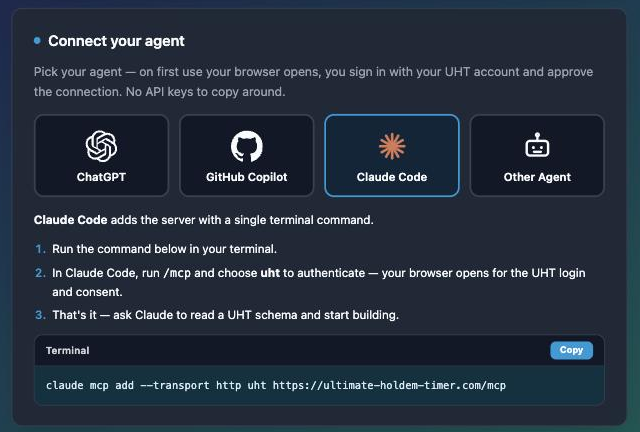
The approval step (all assistants)
Whichever assistant you use, the first connection ends on this page in your browser:
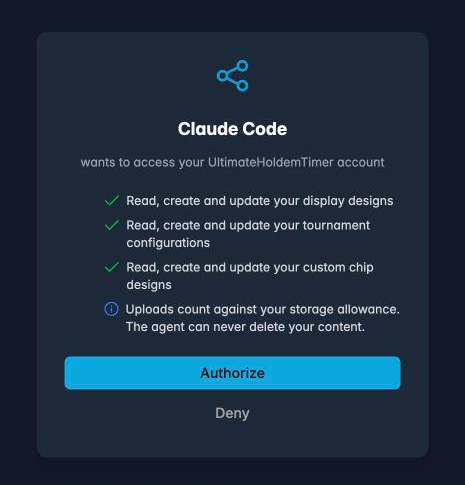
It names the assistant that is asking and lists what it will be able to do. Approve lets it in; Deny sends it away with nothing. If you are not signed in to UHT in that browser, you sign in first and land back on this page.
Approve in a browser on the same computer the assistant runs on — it is waiting for your answer there.
ChatGPT
Works with the free ChatGPT plan, on chatgpt.com:
- Click your name at the bottom left and choose Settings.
- Go to Plugins and click Browse plugins. Don't see it? Turn on Developer mode on the same page.
- Create a new plugin: paste the UHT address, name it
UHTand leave the sign-in option as it is. Confirm and click Create. - Sign in to UHT in the window that opens and click Approve.
- In a chat, pick UHT from the + menu and ask away.
There's a picture for every click in Connect ChatGPT step by step.
Claude (website and desktop app)
- Open Settings → Connectors and choose Add custom connector.
- Name it
UHT, paste the UHT address and save. - Click Connect, sign in to UHT and click Approve.
- In a new chat, switch the UHT connector on in the tools menu and ask away.
Claude Code
Run this once in your terminal:
claude mcp add --transport http uht https://ultimate-holdem-timer.com/mcp
Then, inside Claude Code, type /mcp, select uht and choose Authenticate. Your
browser opens — approve, and UHT is available in every conversation. Try:
Use UHT to show my account info and list my display designs.
Codex
Codex (the terminal app, the desktop app and the editor extension share one setup):
codex mcp add uht --url https://ultimate-holdem-timer.com/mcp
codex mcp login uht
The second command opens your browser: sign in to UHT and click Approve. Then start Codex and ask away.
VS Code (GitHub Copilot)
- Open the Command Palette (Ctrl+Shift+P, or Cmd+Shift+P on a Mac) and run MCP: Add Server….
- Choose HTTP, paste the UHT address and name it
uht. - Your browser opens: sign in to UHT and click Approve.
- Open Copilot Chat in Agent mode — the UHT tools are there.
Prefer editing the settings file? Add this to .vscode/mcp.json (one project) or your user
configuration:
{
  "servers": {
    "uht": { "type": "http", "url": "https://ultimate-holdem-timer.com/mcp" }
  }
}
Cursor
-
Open Cursor Settings → MCP and choose Add new MCP server, or add this to
~/.cursor/mcp.json:{"mcpServers": {"uht": { "url": "https://ultimate-holdem-timer.com/mcp" }}} -
Cursor notices that UHT needs a sign-in — click the prompt, approve in the browser, done.
Any other app
Windsurf, Gemini CLI, LM Studio and every other app that supports MCP work the same way:
- Find the place to add an MCP server. Apps call it a connector, an integration or a tool. If you are asked for a type, choose HTTP (sometimes called Streamable HTTP).
- Paste the UHT address.
- Your browser opens: sign in to UHT and click Approve. That's it — the app finds everything else by itself.
When the connection misbehaves
The assistant suddenly can't reach UHT — the connection most likely expired (after about
30 days). Reconnect it in your assistant (in Claude Code: /mcp → uht → authenticate; in
Claude or ChatGPT: reconnect the connector) and approve again.
The approval page says you can't connect — the service may be paused for maintenance. The landing page always shows the current state.
Saving fails because of storage — your account storage is full. The assistant is told the exact numbers, and Free up space shows how to make room.
The browser never opens — some terminal apps print a sign-in link instead of opening the browser. Copy it into a browser on the same computer and approve there.