Use UHT with your AI assistant
You can connect an AI assistant — ChatGPT, Claude, Codex, GitHub Copilot in VS Code and many others — to your UHT account. From then on you simply tell it what you want:
Plan our Friday freezeout for 8 pm next week: about 30 players, 20 euro buy-in, 20-minute levels, and open the registration.
…and a few seconds later the tournament is planned in your account and players can sign up. No clicking through the wizard, no settings to look up.
Connecting an assistant costs nothing extra. Free, Supporter and Commercial accounts can all use it — you only need a UHT account. Your assistant app itself (ChatGPT, Claude, …) may have its own plans; the free versions of most of them work.
There is also a visual tour of everything an assistant can do, with animated examples — a good page to send to a friend.
What is "MCP"?
AI assistants are great at understanding what you mean, but on their own they can't reach into the apps you use. MCP (short for Model Context Protocol) is the plug that changes that. Connect UHT once, and your assistant can look things up and create things in your account, just like you would by clicking around — only faster.
You never have to deal with MCP itself. All you need is the UHT address:
https://ultimate-holdem-timer.com/mcp
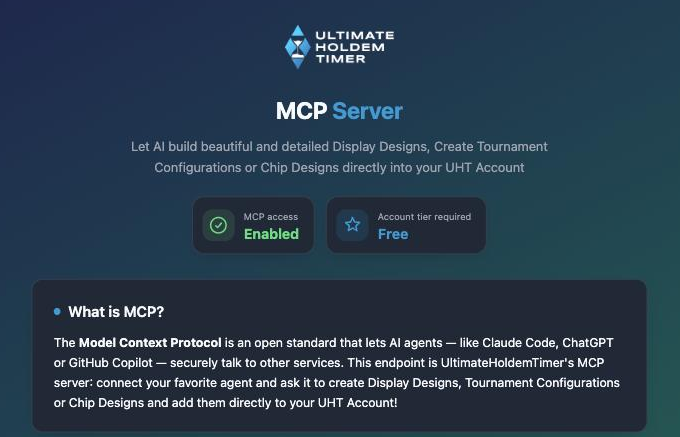
Open that address in a normal browser and you get a short landing page with the same setup help as this section.
What your assistant can do
Displays, chips and tournament setups
- Create and change display designs — "a dark display with a huge timer, a cyan glow and the prize pool at the bottom". The result shows up in the display designer, where you can fine-tune it by hand.
- Create and change tournament configurations — blind structure, breaks, buy-ins, re-entries and payouts, ready to start.
- Create and change chip designs — your own chip artwork in all nine chip colors.
- Build your library — saved blind structures, prize distributions, starting stacks and chip sets, plus your player list ("add Anna, Ben and Chris to my players").
Planned tournaments and registration
- Plan a tournament for a date and time — from scratch, from one of your saved configurations, or as a copy of an earlier tournament ("same as last Friday, but next Friday").
- Change a planned tournament before it starts.
- Open the registration page of a planned tournament, so players can sign up themselves, and change it later (number of seats, when registration opens, …).
- Look at a registration page the way your players see it, including how many have signed up.
Clubs and leagues
- Your clubs — which clubs you belong to, their upcoming and past tournaments, and a summary of any of them.
- League standings — the table, statistics, the schedule, a player search and a side-by-side comparison ("compare me with Jonas").
- For club directors — put a club tournament into a league, and invite players to your club by email.
Your stats and account
- Your own results across all tournaments you played ("how did I do this year?").
- Tournament summaries — the clock, the field, the prizes and the standings of any of your tournaments.
- Your account — your tier, how much storage you use and how many items you have saved.
Everything your assistant creates appears in your account immediately and behaves exactly like something you made yourself.
What your assistant can not do
You stay the tournament director. On purpose, an assistant:
- can never delete anything. Cleaning up is always done by you, in the app.
- can't touch a running tournament — not the clock, not the players, not the payouts. Once a tournament has started, the assistant can only read it.
- can't cancel a registration page, change club members or roles, or edit league scoring.
- only sees what you are allowed to see. In a club, a player sees what a player sees; only directors can invite people or assign tournaments to leagues.
Other people's email addresses, payments and notes are never handed to the assistant.
Good to know
- You approve every connection. The first time an assistant connects, UHT opens in your browser and asks you. Nothing happens without your OK.
- Your storage limit applies. Things the assistant saves count against the same limit as everything else (5 MB Free, 50 MB Supporter, 500 MB Commercial). If it runs out of space, it is told so and should tell you — see Free up space.
- Access ends by itself after about 30 days. Nothing breaks; the assistant just asks you to reconnect, which takes a minute.
- Check the money. Assistants are excellent at layouts and structures, and sometimes too confident about payout math. Glance over buy-ins, prizes and bounties before the real tournament starts — everything stays editable in the app.
Next steps
- Connect your assistant — a few steps for ChatGPT, Claude, Codex, VS Code and any other app.
- Example prompts — things to ask, ready to copy.