Run your first tournament
This walks you through one complete tournament, from a blank screen to a clock counting down on the TV. It takes about five minutes, and you do not need an account to do any of it.
The short version: you fill in a few details, let UHT build the blind levels for you, pick how the clock should look, and press start.
Prefer to watch? Create your first tournament covers this page in a few minutes.
1. Open the tournament wizard
From the home page, hit Start Your Tournament.
That opens the wizard — nine steps down the left-hand side. Two of them need something from you:
- Step 1 — a name for the configuration.
- Step 4 — a blind structure. UHT can build this for you in one click, so it isn't the chore it sounds.
Everything else has sensible defaults you can come back to later. UHT won't let you save until both required steps are done, and it tells you which one is missing.
2. Name it and set the money
Step 1 asks for the basics.
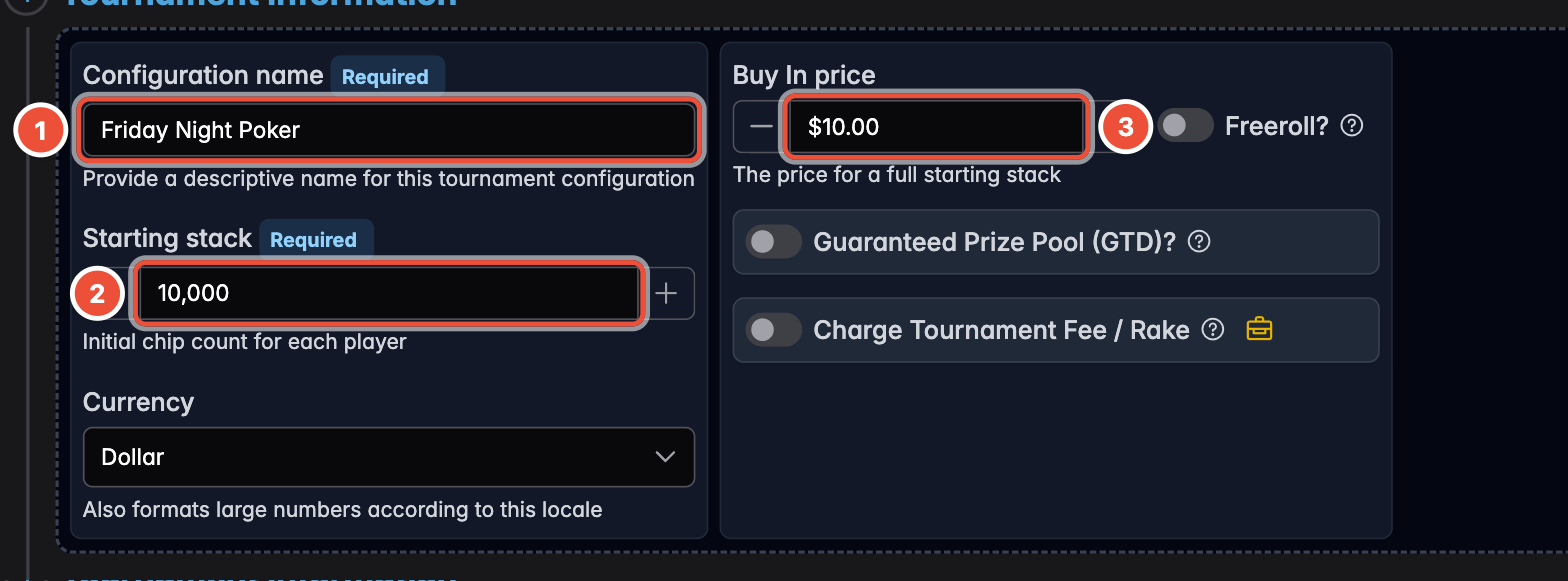
- Configuration name — what you'll call this setup. "Friday Night Poker" is fine. You'll reuse it next time instead of building it again.
- Starting stack — how many chips each player gets. 10,000 is a common choice and works well with the default blind levels.
- Buy-in price — what it costs to enter. This feeds the prize pool automatically.
The starting stack is chips, not money. If everyone puts in £10 and gets 10,000 chips, the buy-in is 10 and the starting stack is 10,000.
Freeroll does not mean "no money involved". It means the first entry is free — players get in without paying, and the prize pool usually comes from somewhere else, typically a guaranteed amount the host puts up.
3. Let UHT build the blind levels
Jump to step 4, Blind Structure. You could type every level by hand, but there is a much faster way: scroll down to the Blind Structure Generator.
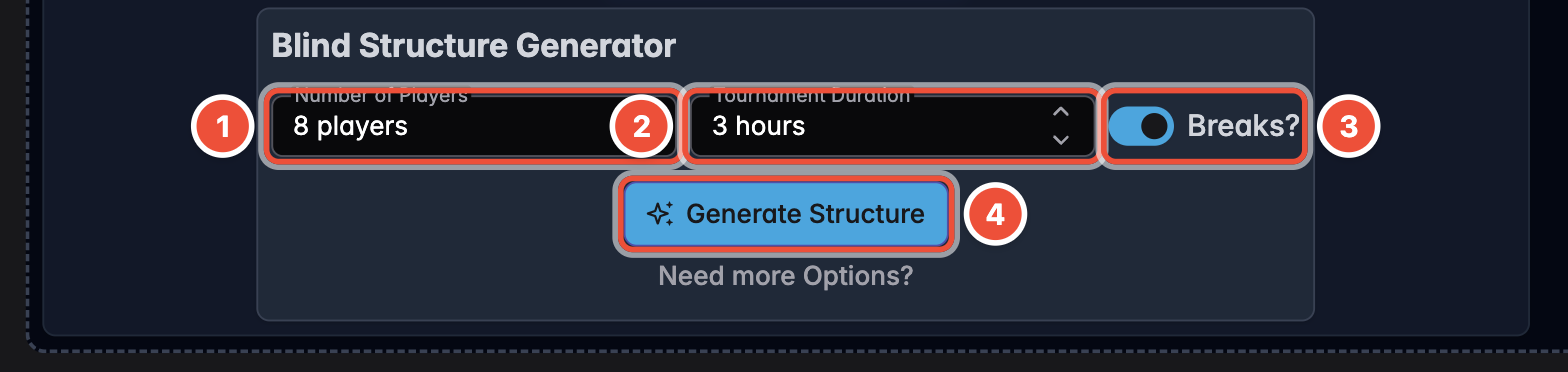
- Number of players — roughly how many are coming.
- Tournament duration — how long you want the whole thing to last.
- Breaks — leave this on unless you want to play straight through.
- Press Generate Structure.
That's the whole job. UHT works out sensible blinds, antes and break placement for the length you asked for.
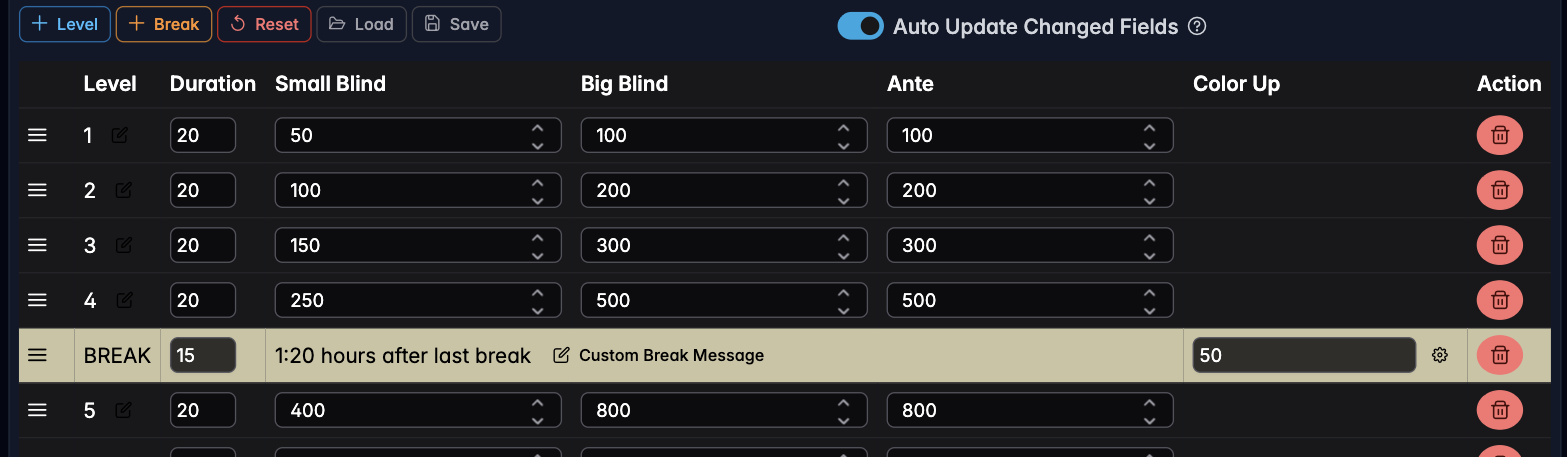
You get a table of levels with small blind, big blind and ante, and breaks dropped in at the right points (the highlighted row). Every number is editable — click any field and change it if you disagree. The total duration at the bottom updates as you go.
Nothing is set in stone once the tournament starts. You can add levels, adjust blinds or skip ahead while you play.
4. Choose how the clock looks
Step 8 is Clock / Display Design. This is the screen your players will be watching for the rest of the evening, so it is worth a moment's consideration.
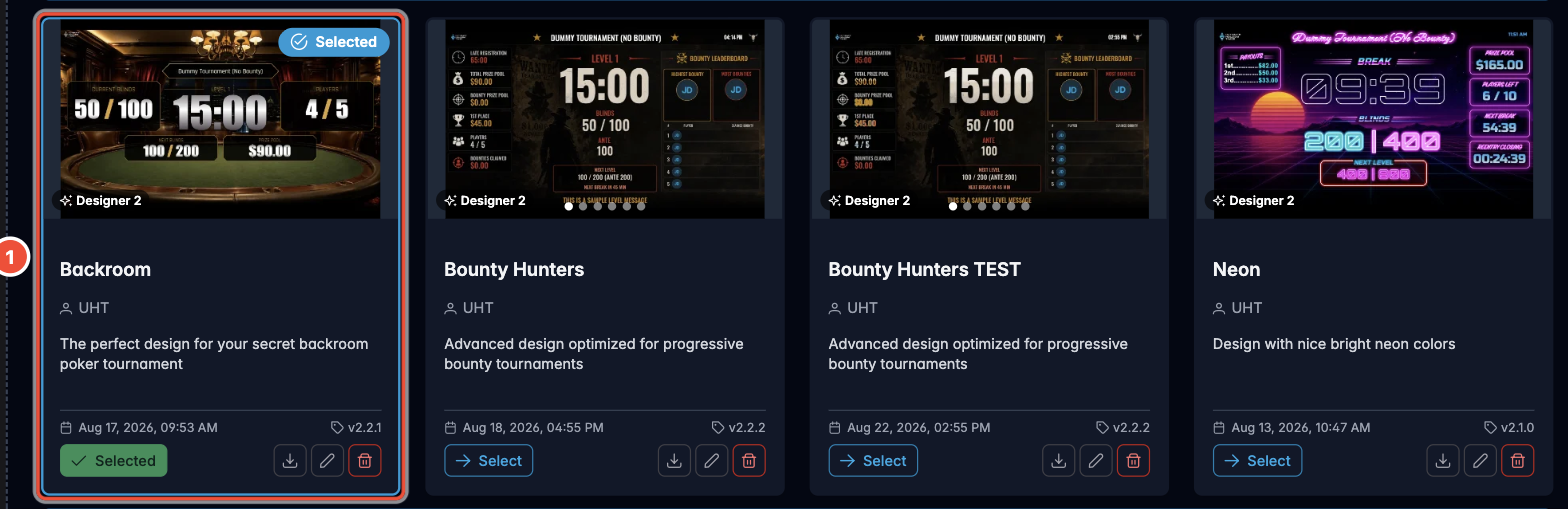
Each card shows a preview. Click Select on whichever you like. The one you picked gets a Selected badge.
Designs differ in what they can show — one might display chip denominations or bounties while another does not. If something you configured cannot be shown by the design you picked, UHT tells you right on this step, and nothing breaks either way. You can always build your own later; see Display designer.
5. Save it
Scroll to the bottom and press Create Tournament Configuration.
This saves the setup, not a tournament. Think of it as a template: next Friday you start from here instead of doing all of the above again.
6. Start the tournament
You land on your list of configurations. Find the one you just made and press Start.

UHT asks for a name for this particular evening — it defaults to the configuration name, which is usually what you want. Add a location if you like.
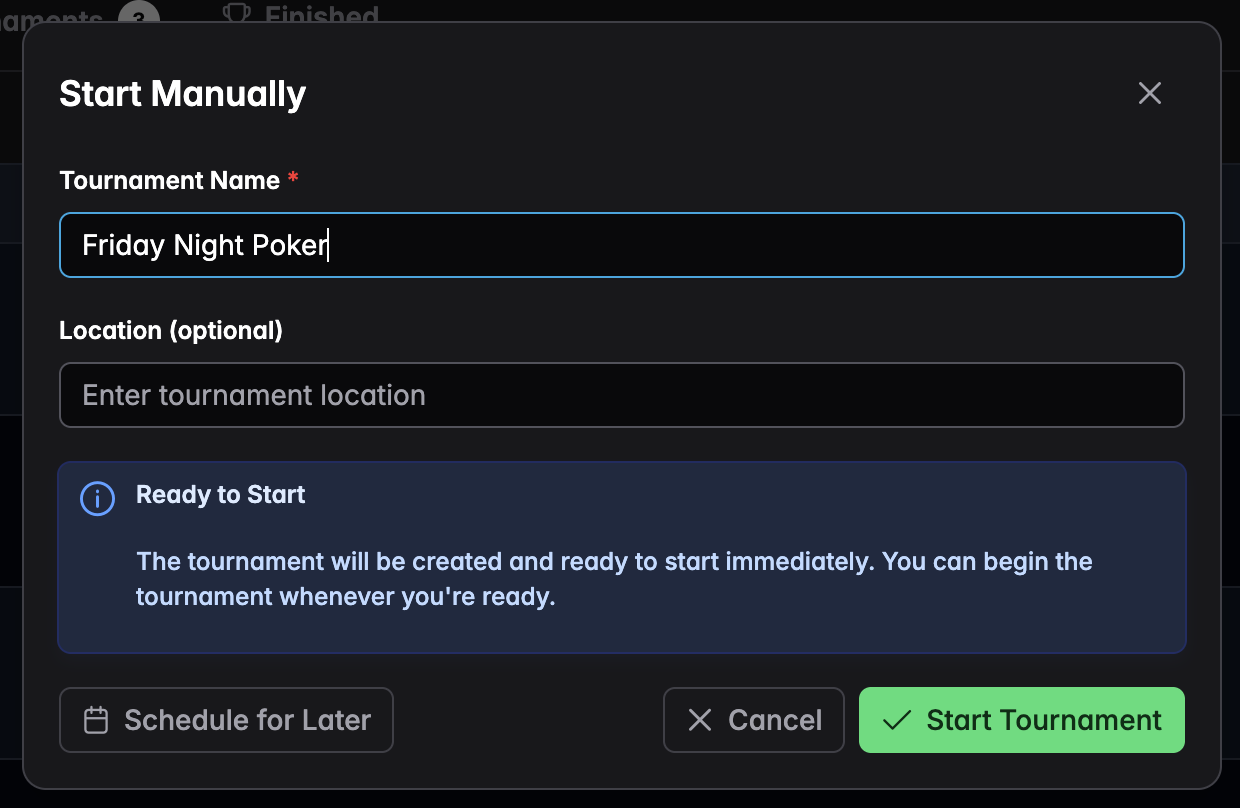
Press Start Tournament. If you're setting up in advance, Schedule for Later puts it in your calendar instead.
7. Open the clock
Your tournament now sits under Planned.

- Open Timer — opens the clock on this screen. This is the one you want.
- Multi Monitor — for showing the clock on a second screen or a TV in another room. See Multi monitoring when you're ready for that.
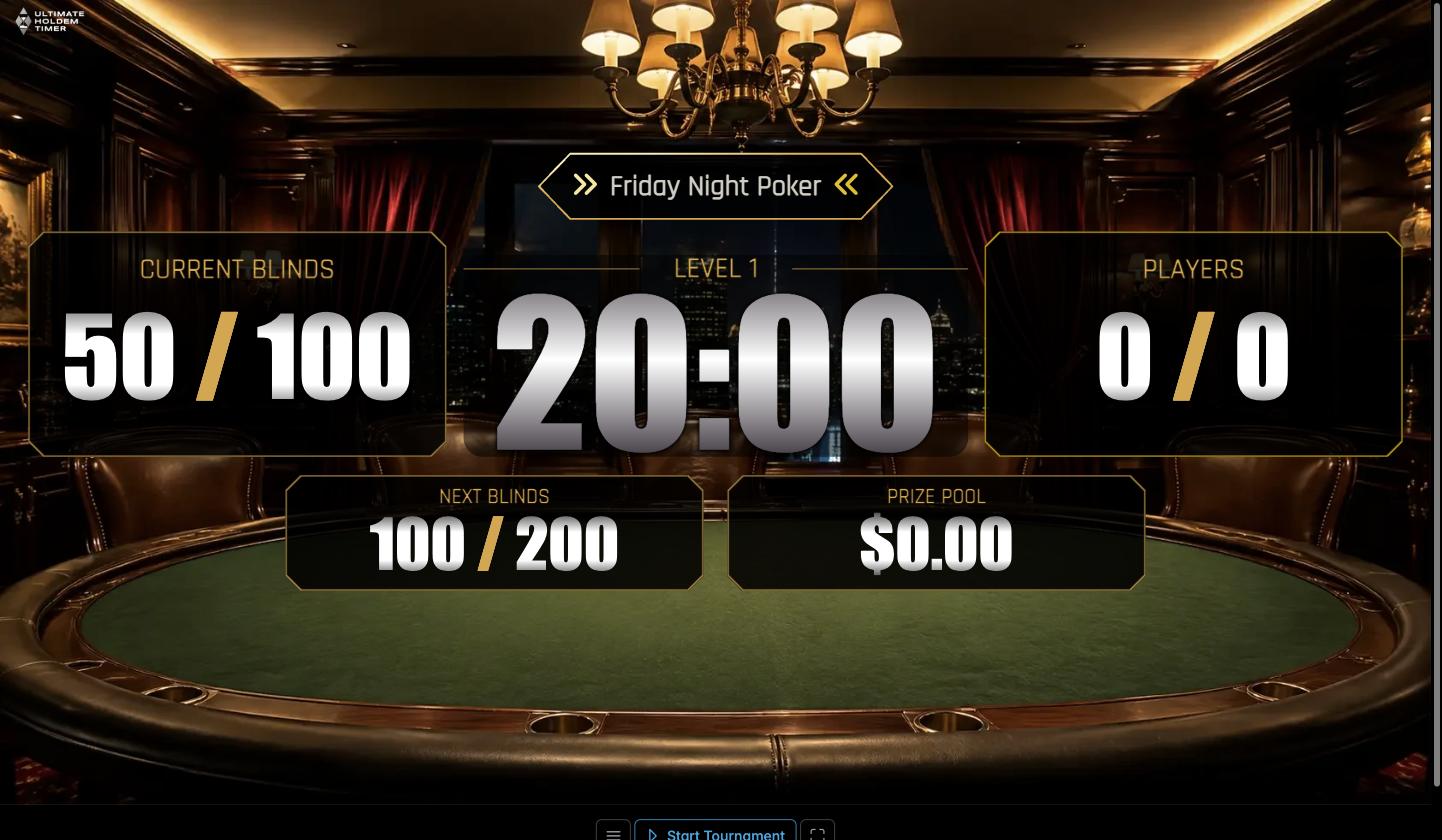
And there it is:
8. Press play
The clock is not running yet — it is waiting for you. The controls sit along the bottom.
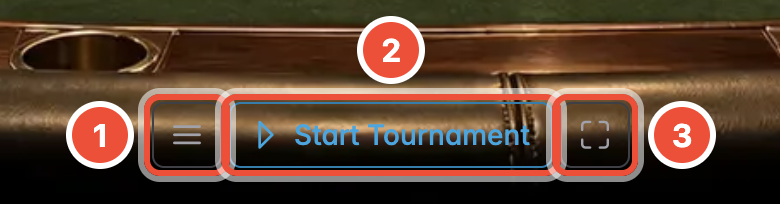
- Menu — everything else: add players, pause, jump levels, adjust the structure.
- Start Tournament — begins the countdown. This is the button.
- Fullscreen — hides everything except the clock. Use this once play begins.
Press Start Tournament, go fullscreen, and you are running a poker tournament.
9. The tournament controls
The menu button opens the tournament controls — everything you'll touch during the evening.
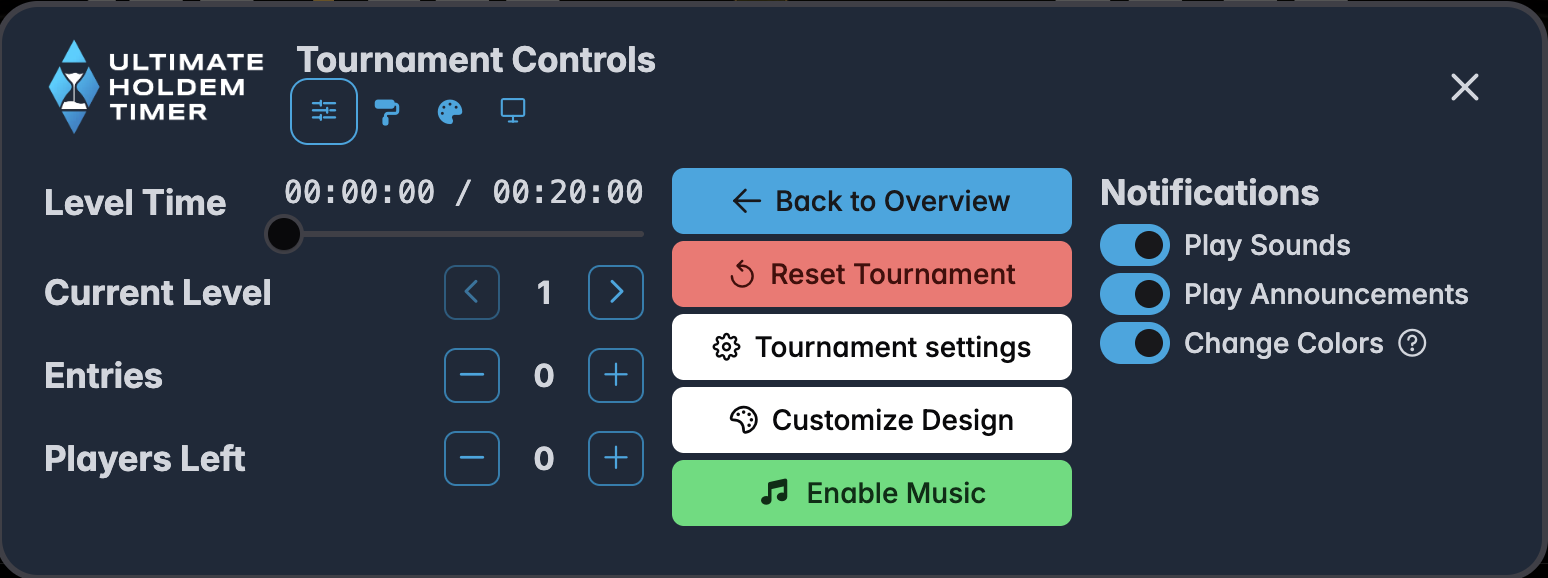
- Level Time — the slider drags the clock forwards or back within the level. Useful when play has to pause for a minute.
- Current Level — jump a level forwards or back with the arrows.
- Entries / Players Left — the headline counts. If you are tracking players by name, these fill in by themselves.
- Back to Overview — leave the clock without ending the tournament.
- Reset Tournament — puts it back to the start. It asks first.
- Tournament settings — change blinds, prizes and the rest mid-game.
- Customize Design — switch to a different display without stopping.
- Notifications — sounds, spoken announcements, and whether the display changes colour on breaks and level changes.
The row of small icons at the top switches between panels: the controls above, player management, design switching, and multi monitoring.
Tracking players
If you turned Track Players on, you get a Player Management section:
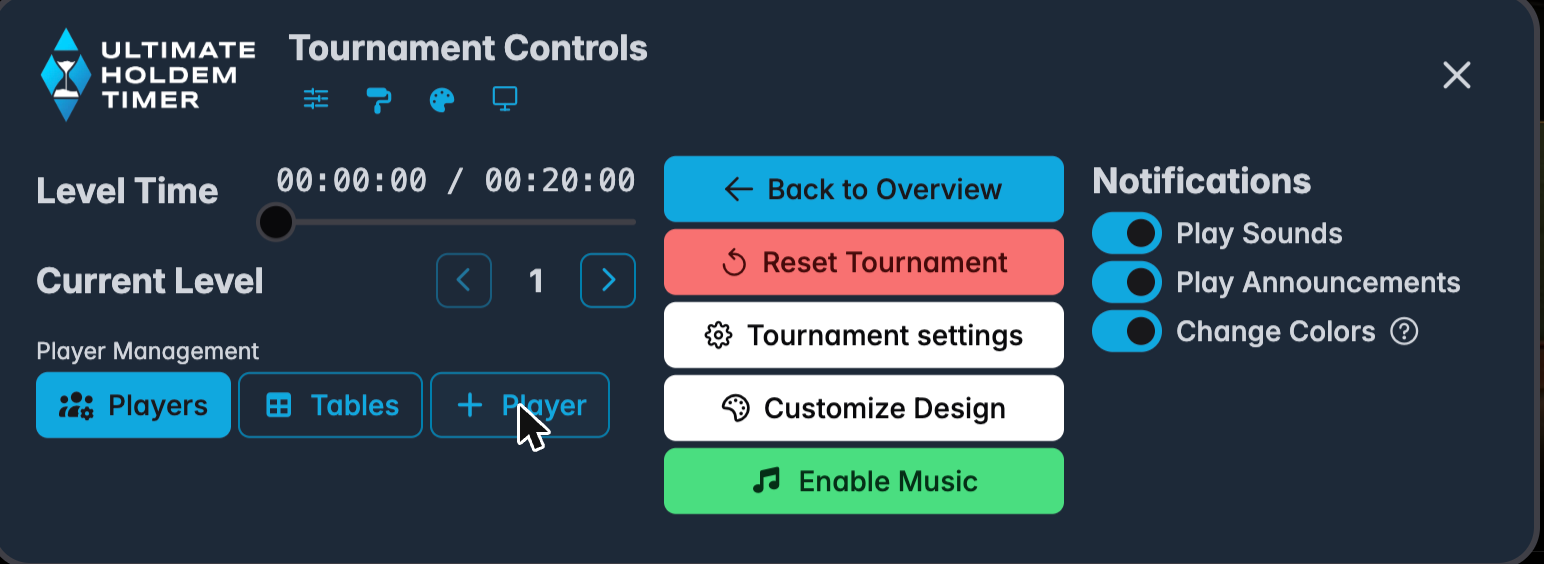
+ Player adds someone by name as they buy in. Players opens the full list, where you record knockouts and re-entries. Tables handles seating if you're running more than one table.
At the end
When the last player is knocked out, UHT shows the final standings:
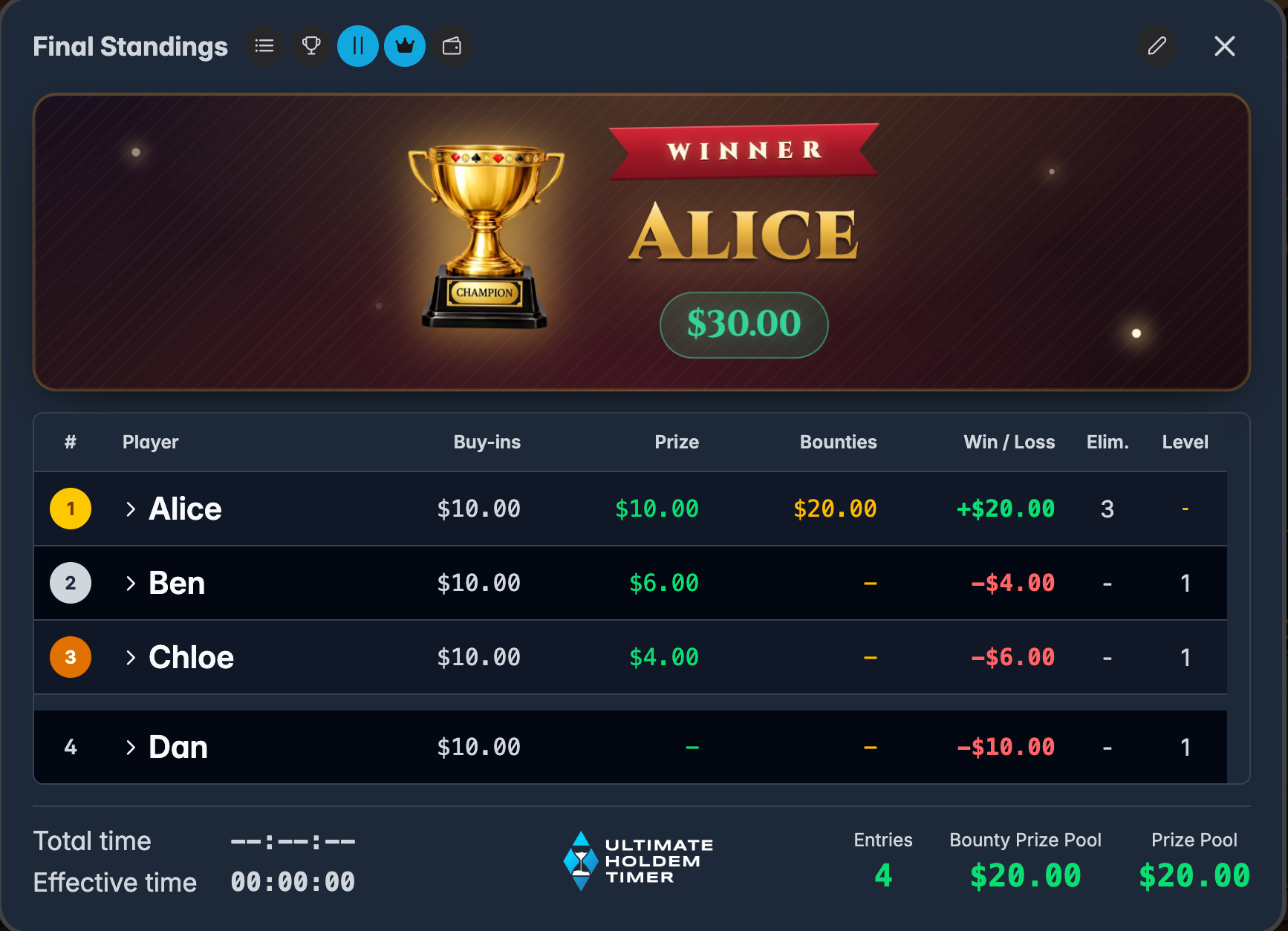
Every player's position, what they paid in, what they won, and whether they finished up or down. This is the screen you settle up from.
What next?
- Tracking who's playing and who's out, and paying out the prize pool → the Menu button during the tournament
- Putting your own chips on screen → Import your chips
- Bounties on players' heads → Bounty tournaments
- The clock on a second TV → Multi monitoring
- Building your own display from scratch → Display designer
Something not behaving? Something not working? covers the usual suspects.