Build your own display
The display designer lets you build the screen your players watch throughout the tournament. You place things on a canvas, style them, and fill them with placeholders that get replaced with live tournament data while you play.
You don't need any design experience. This page walks you through building a simple, clean display from nothing, then explains every feature you might want afterwards.
There's a step-by-step walkthrough on YouTube if you'd rather follow along than read.
Prefer to watch? Display designer walkthrough covers this page in a few minutes.
Getting in
Open Display Designer from the top menu. If you haven't built anything yet you'll get this:
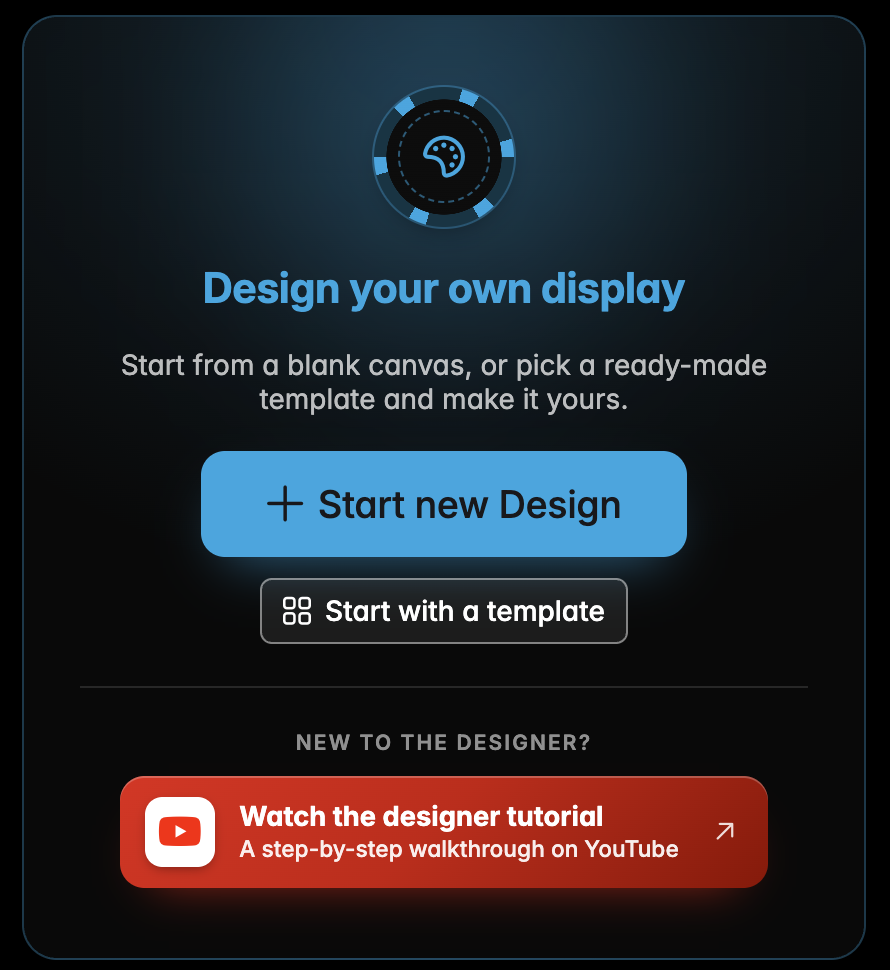
Start with a template if you want something good-looking immediately and plan to tweak it. Start new Design gives you a blank canvas — which is what we'll do here, because building one from scratch teaches you where everything lives.
First it asks what shape of screen you're designing for:
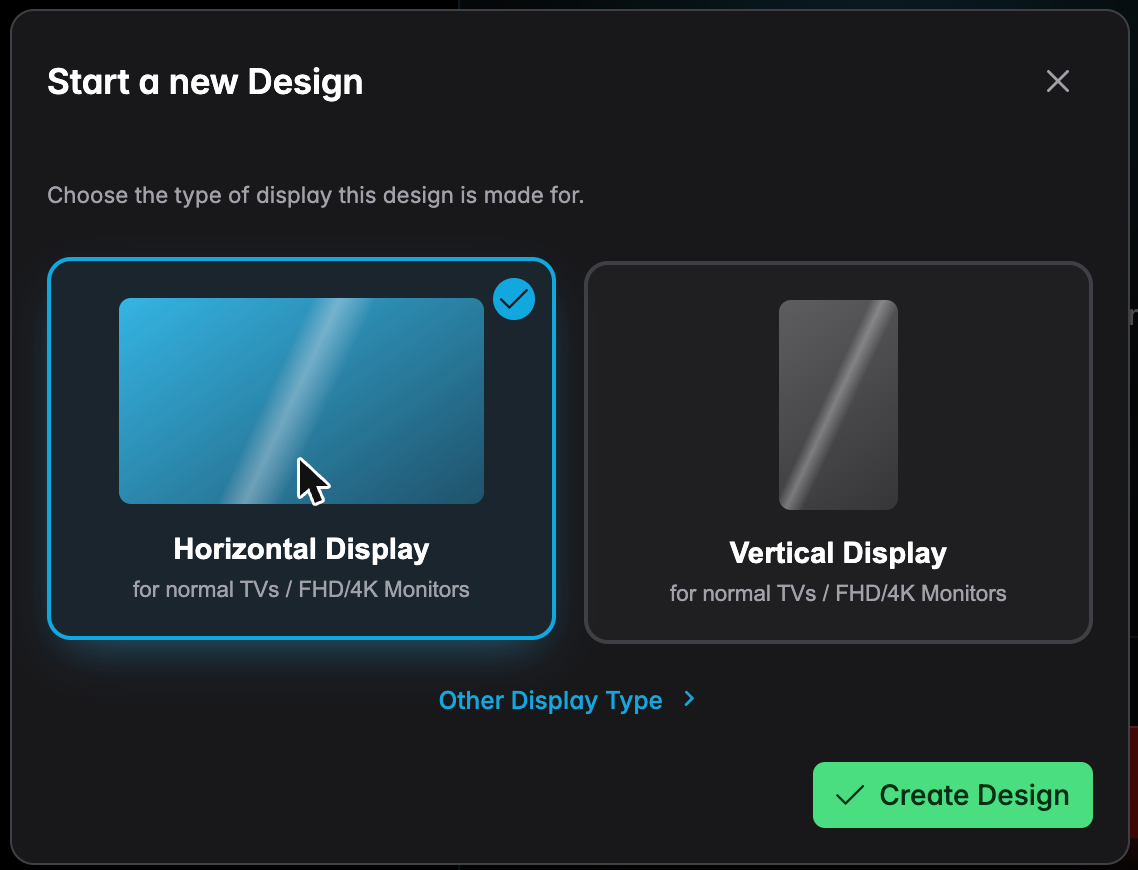
Horizontal for a normal TV or monitor. Vertical for a screen turned on its side. Other Display Type covers tablets, phones and any custom size.
Pick Horizontal and press Create Design.
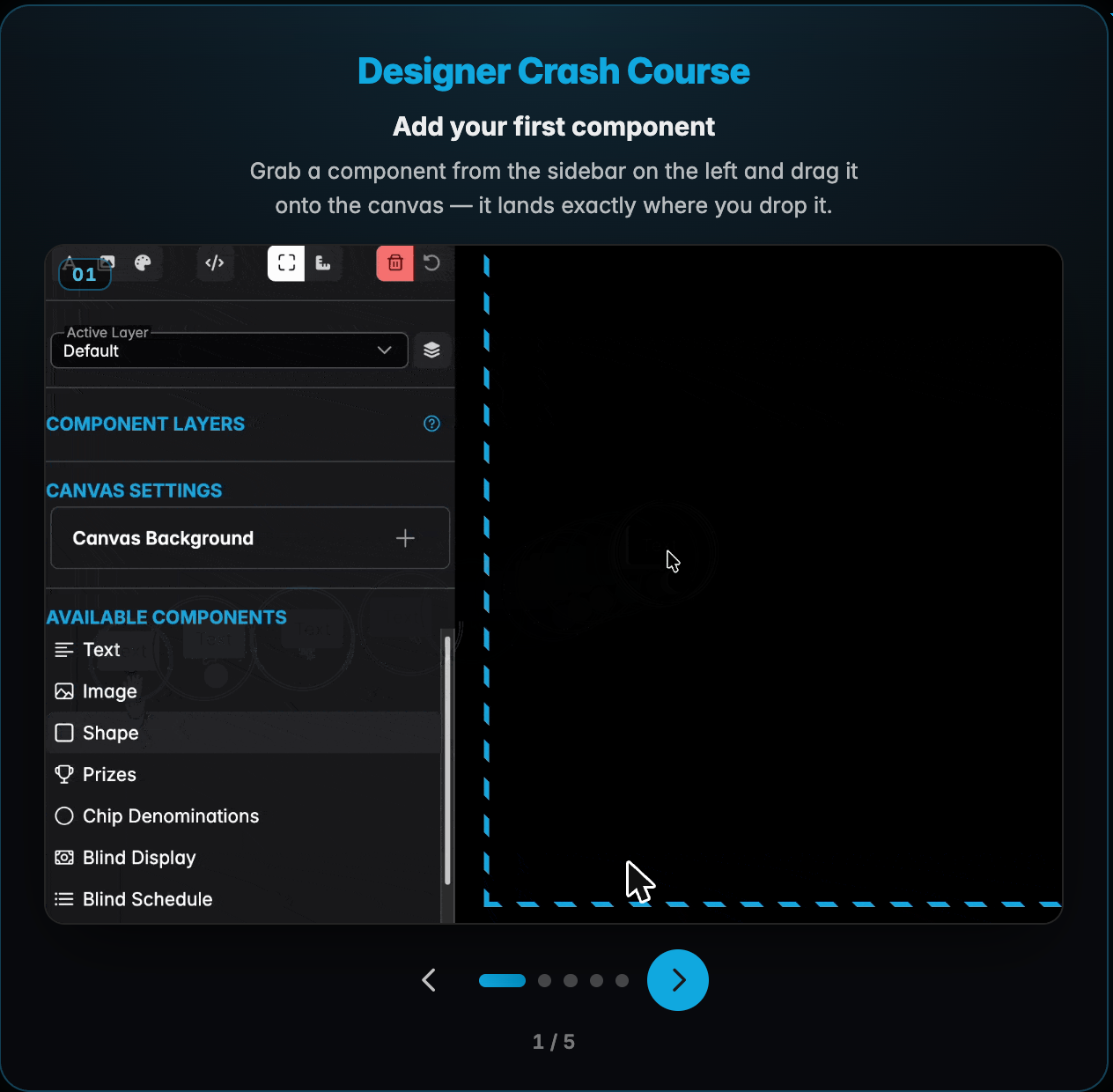
A short Designer Crash Course appears the first time. It's five slides and worth the thirty seconds:
The three areas
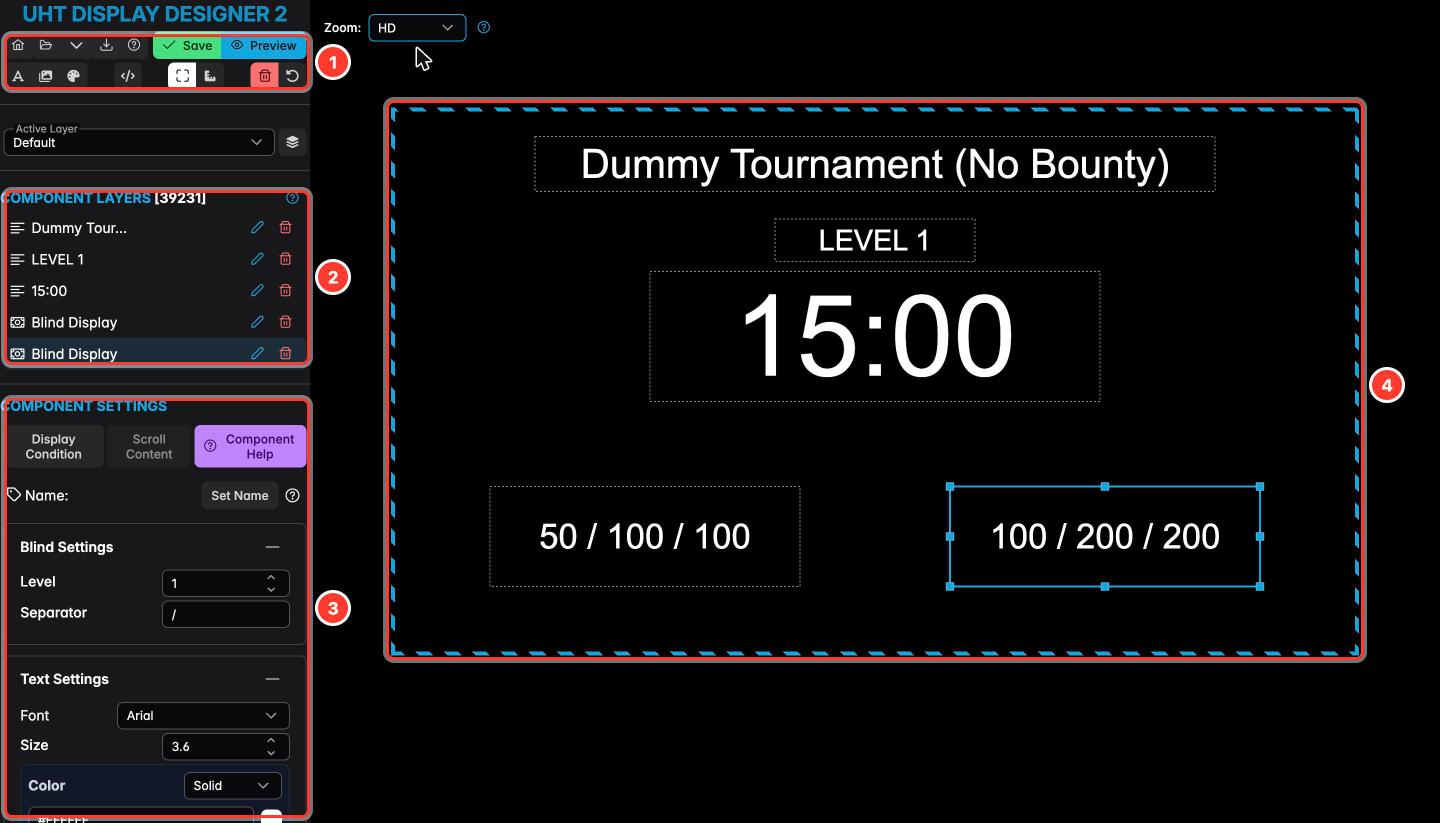
Everything in the designer lives in one of these:
-
Toolbar — save, preview, and the design-wide tools: fonts, images, colours, placeholders, rulers, reset, undo and redo. It's two short rows, and every button in this guide is one of these:
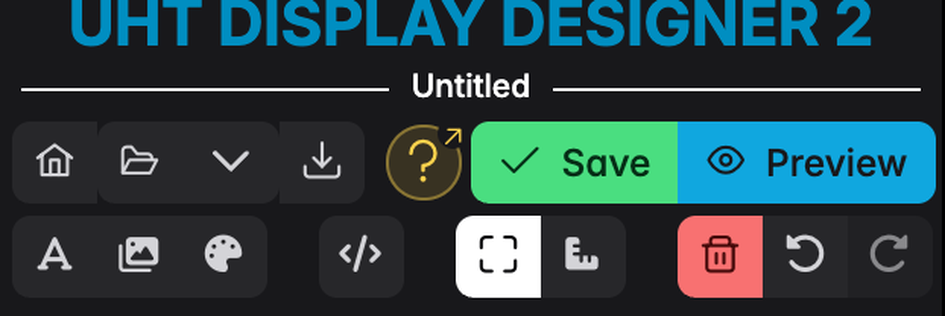
The last two buttons step through your edit history: undo takes back the last change, redo puts it back. Redo stays greyed out until you have undone something, and any new edit clears what there was to redo.
-
Component layers — everything currently on the canvas. Click one to select it. The order here is the stacking order: items lower in the list draw on top.
-
Component settings — everything about whatever you've selected. This panel changes completely depending on what's selected.
-
Canvas — the screen itself. What you see here is what players see.
The Zoom dropdown above the canvas (HD / FHD / 4K) changes how the canvas is displayed while you work. It does not change your design — it just lets you see a big canvas on a small laptop screen.
Where to go next
| If you want to… | Read |
|---|---|
| Build something from a blank canvas | Your first display |
| Know what each component does | Components |
| Put live tournament data on screen | Using placeholders |
| Fit a long list into a small space | Scrolling content |
| Show something only sometimes | Display conditions |
| Change the whole screen at a break | Layers |
| Use a font that isn't in the list | Adding fonts |
| Upload logos, photos or sponsor art | Managing resources |
| Preview against realistic numbers | Tournament options |
Practical advice
Build for the back of the room. Everything looks readable on a laptop 50 cm from your face. Walk to the far wall and look at the TV. The clock and the blinds must be legible from there; everything else is secondary.
Fewer things, bigger. The commonest mistake is cramming in everything available. Blinds, clock, level number, players left — that's a good display. Everything else is optional.
Use Preview constantly. The designer shows boxes and guides; Preview shows what players see.
Check it in a real tournament before the night itself. Start a throwaway tournament, put the design on, and look at it.
Contrast matters more than colour. Pale text on a photo background is unreadable. Put a dark shape behind text sitting on an image.