Using placeholders
Placeholders are the single most important idea in the display designer. Everything else — components, layers, conditions — exists to arrange them.
A placeholder is a piece of text in double curly braces that UHT replaces with live data. Type this:
LEVEL {{current.level}}
and the screen shows LEVEL 7 during level 7, then LEVEL 8 a moment later. You write the design once; the numbers keep themselves current.
Anywhere you can type text, you can use a placeholder: text components, shape labels, container labels, notification overlays.
The three rules
1. Anything outside the braces is left alone. Blinds {{current.sb}} / {{current.bb}}
becomes Blinds 500 / 1,000. The word "Blinds" and the slash come through exactly as
typed.
2. Values format themselves. You don't add currency symbols or thousands separators —
{{current.prizepool}} already knows it is money and renders $1,240.00 in your
tournament's currency. A chip count arrives as 25,000, not 25000.
3. An empty value renders as nothing. If you haven't set a level message,
{{current.level.message}} produces an empty string rather than an error. This is what
makes it safe to build one design that covers several kinds of tournament — see
display conditions for hiding the surrounding decoration
too.
Finding the one you need
You are not expected to memorise 150-odd names. There are two ways to find them, and the first is much faster.
Autocomplete
Inside the text editor, type {{ and UHT starts suggesting as you type:
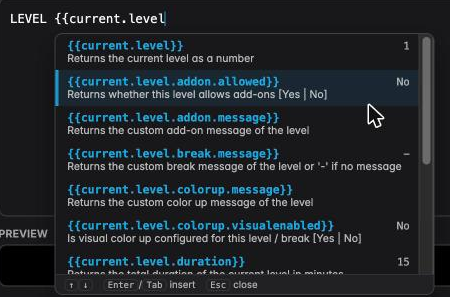
Three things make this the fastest route:
- It filters as you type.
{{current.levelnarrows the list to the level placeholders. - Every row explains itself — a one-line description sits under each name.
- The right-hand column shows the current value, taken from your preview tournament. If
the row reads
15, that is what will appear on screen.
Move with ↑ ↓, insert with Enter or Tab, dismiss with Esc. The closing }}
is added for you.
The full browser
Press the </> button in the toolbar to browse everything at once:
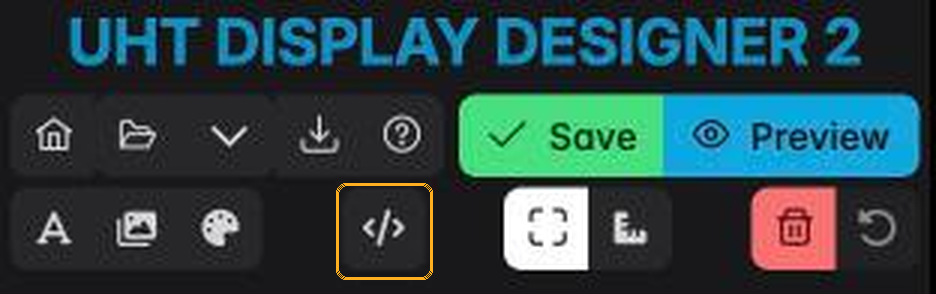
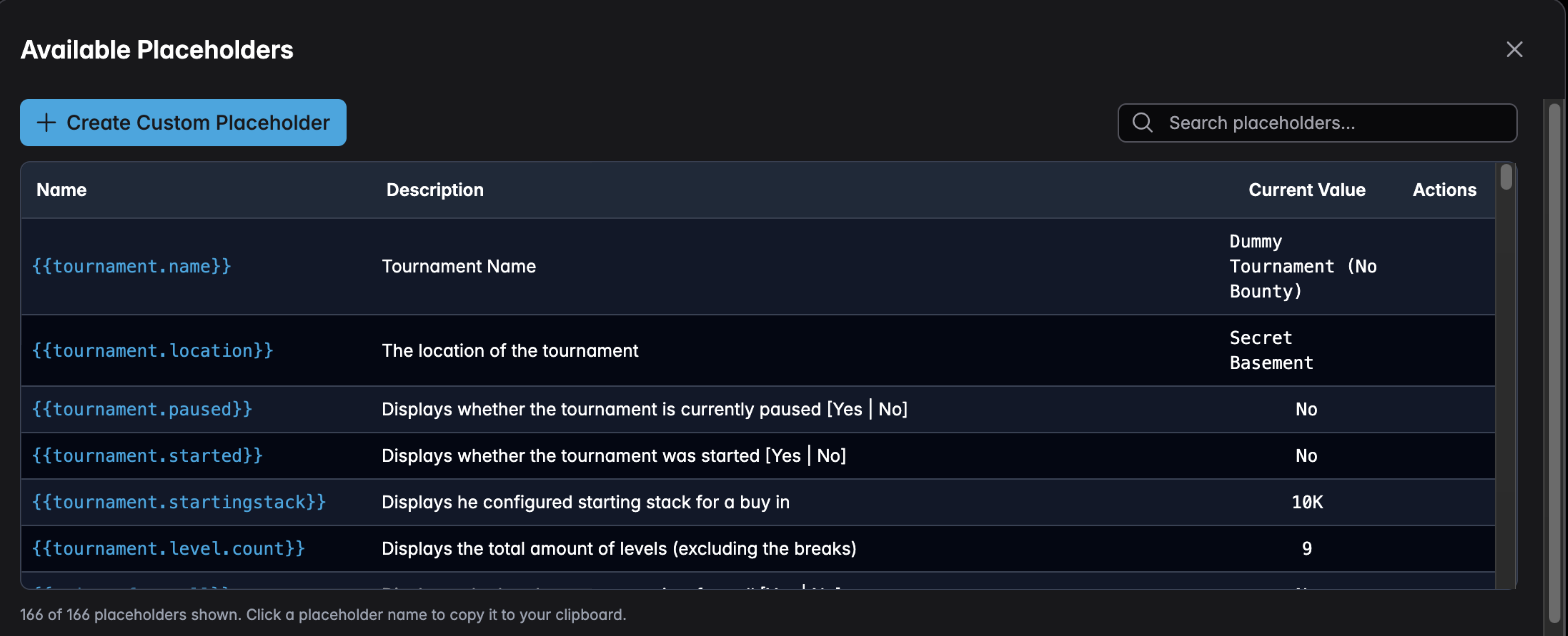
This is the one to open when you do not yet know what you are looking for. Click a name to copy it.
What is available
Placeholders are grouped by prefix, and the prefix tells you what family a value belongs to. These are the ones you will reach for most.
The tournament itself
| Placeholder | Shows |
|---|---|
{{tournament.name}} | The tournament's name |
{{tournament.location}} | The venue you entered |
{{tournament.startingstack}} | Starting stack in chips |
{{tournament.level.count}} | How many levels the structure has, excluding breaks |
{{tournament.started}} | Yes / No |
{{tournament.paused}} | Yes / No |
The clock
| Placeholder | Shows |
|---|---|
{{timer.level.$FORMAT:auto}} | Time left in the current level |
{{timer.break.$FORMAT:auto}} | Time left in the current break |
{{timer.latereg.$FORMAT:auto}} | Time left to register |
{{timer.elapsed.time.$FORMAT:auto}} | How long the tournament has been running |
{{timer.current.time}} | Wall-clock time — the actual time of day |
The $FORMAT parameter decides how the clock reads. auto is almost always right: it
shows MM:SS for a normal level and switches to HH:MM:SS when a level is long enough to
need hours, so you never see 95:00 where you meant an hour and a half.
The current level
| Placeholder | Shows |
|---|---|
{{current.level}} | Level number |
{{current.sb}} / {{current.bb}} / {{current.an}} | Small blind, big blind, ante |
{{current.level.duration}} | Level length in minutes |
{{current.level.isbreak}} | Yes / No |
{{current.level.message}} | Your custom message for this level |
{{current.level.break.message}} | Your custom break message |
{{current.level.colorup.message}} | The colour-up instruction for this level |
The next level
| Placeholder | Shows |
|---|---|
{{next.sb}} / {{next.bb}} / {{next.an}} | Next level's blinds |
{{next.level.isbreak}} | Whether a break comes next |
{{next.break.level}} | Which level the next break falls on |
{{next.colorup.level}} | Which level the next colour-up happens on |
Money
| Placeholder | Shows |
|---|---|
{{current.prizepool}} | The prize pool |
{{current.total.prizepool}} | Prize pool including bounties |
{{current.bounty.prizepool}} | The bounty pool alone |
{{prizes.for.place.$PLACE:1}} | The prize for a given place |
{{prizes.left}} / {{prizes.awarded}} | Prize money still to pay / already paid |
{{prizes.itm}} | How many places are paid |
{{buyin.price}} | The buy-in |
Players
| Placeholder | Shows |
|---|---|
{{players.entered}} | Total entries |
{{players.left}} | Players still in |
{{itm.active}} | Whether the remaining players are all in the money |
{{bubble.active}} | Whether the field is on the bubble |
League
| Placeholder | Shows |
|---|---|
{{league.name}} | The name of the league |
{{league.players}} | How many players are in the league |
{{league.leader}} | The name of the league leader |
{{league.leader.points}} | The leader's points |
Without a league the name, leader and leader points are empty (only the player count shows 0). The leader includes what the running
tournament adds.
There are also full families for bounties.*, chips.*, reentry.*, addon.* and
elimination.*. Use the browser to explore those — each entry explains itself.
Parameters
Some placeholders take a parameter, written after a $. The pattern is always
$NAME:value.
{{prizes.for.place.$PLACE:1}}     first place's prize
{{prizes.for.place.$PLACE:2}}     second place's prize
{{timer.level.$FORMAT:auto}}      the clock, formatted automatically
{{timer.level.$FORMAT:mm:ss}}     the clock, forced to minutes and seconds
Autocomplete fills the parameter in with a sensible default; you replace the part after the colon.
Worked examples
These are complete pieces of text you can paste into a text component.
A prize board line
1ST PLACE {{prizes.for.place.$PLACE:1}}
Current and next blinds in one component
{{current.sb}} / {{current.bb}} → {{next.sb}} / {{next.bb}}
A player counter that reads naturally
{{players.left}} of {{players.entered}} remaining
A level header that also carries the ante
LEVEL {{current.level}} · ANTE {{current.an}}
A registration notice
Registration closes in {{timer.latereg.$FORMAT:auto}}
Put that one on a component with a display condition so it disappears the moment registration closes — see display conditions.
Conditions inside text
The text editor also understands inline conditions, written with square brackets. They let one component say different things at different times, instead of you building two components and hiding one.
[if current.level.isbreak]BREAK[else]LEVEL {{current.level}}[/if]
The Text features & syntax help panel at the top of the editor documents the full syntax, including the inline styling tags for making one word bold or a different colour inside an otherwise plain line.
Custom placeholders
If the same combination turns up in several components, define it once as a custom placeholder and reference it everywhere. Change the definition and every use updates.
This is worth doing for anything you find yourself retyping — a formatted blind pair, a player-count sentence, a prize line.
Why a placeholder might show nothing
Three common causes, in the order worth checking:
- The preview tournament has no value for it. A bounty placeholder is empty when your selected preview configuration has no bounties. Switch configuration in tournament options.
- The value genuinely is empty right now.
{{next.sb}}is empty on the final level;{{current.level.message}}is empty until you write one. - The name is slightly wrong. A placeholder that does not exist renders as nothing rather than as an error. Retype it through autocomplete rather than by hand.
Next
- Display conditions — hide the surrounding label when a value is empty
- Components — several components read tournament data without any placeholders at all
- Tournament options — control the values you see while designing