Embedding streams and video
The Embed Stream / Video component puts a live web page inside your display. It is a browser frame: the provider draws its own content into the box you place on the canvas.
Typical uses:
- a live stream of the feature table on the wall behind it
- the sports everyone would otherwise be watching on their phones
- a sponsor loop or a promo video between levels
- an external scoreboard, league table or shot clock the club already runs
The point of the component is not just that a video plays. It is that whoever is running the tournament can swap what it shows from the display itself, mid-tournament, without opening the designer — and every connected screen follows.
Adding one
Drag Embed Stream / Video onto the canvas. It lands as a 16:9 box, because that is the shape almost every video ends up being, and shows a Set Content button.
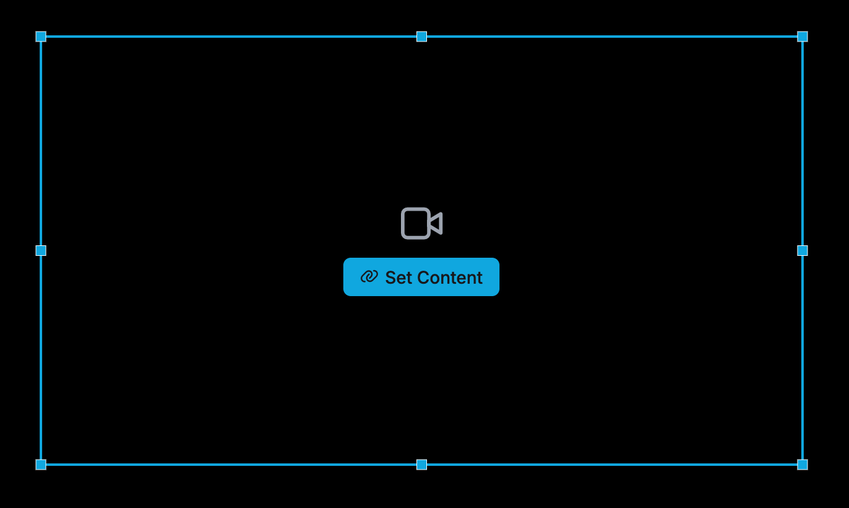
Pressing it opens the content dialog. The same dialog is behind Change Content in the settings panel, and behind the button on the running display — there is only one place to learn, wherever you came from.
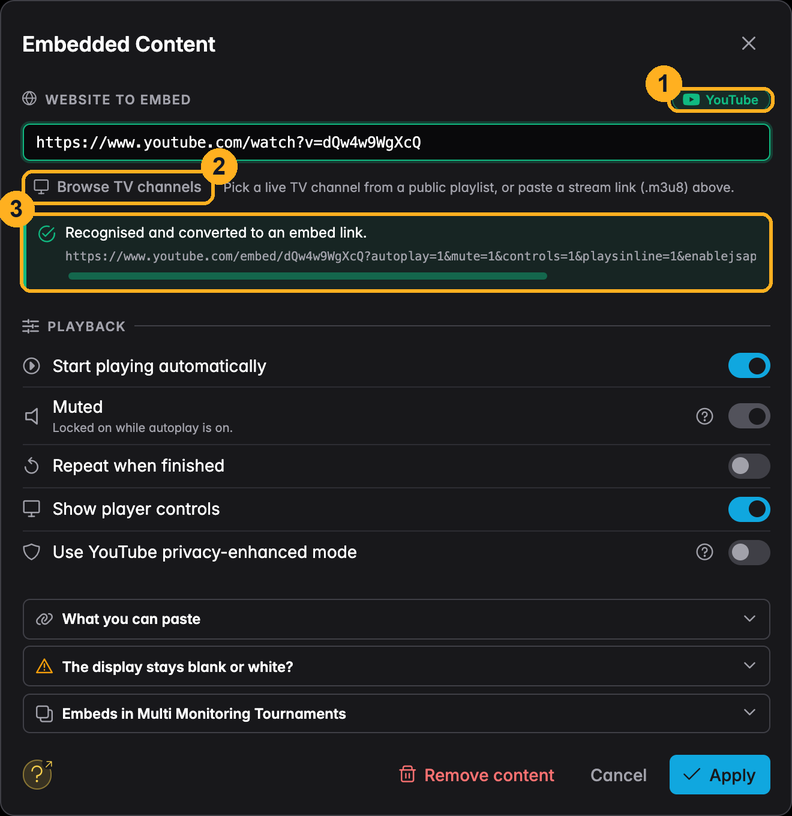
1 — The provider UHT recognised in what you pasted.
2 — Browse TV channels, for live TV streams that have no provider page to paste. See Live TV channels.
3 — The actual embed URL that will be loaded. Paste a link and this appears immediately: you find out here whether the link works, not after saving the design and opening a display. A link that cannot be converted is rejected on the spot, with the reason.
What you can paste
The What you can paste panel at the bottom of the dialog is the short version, always at hand:
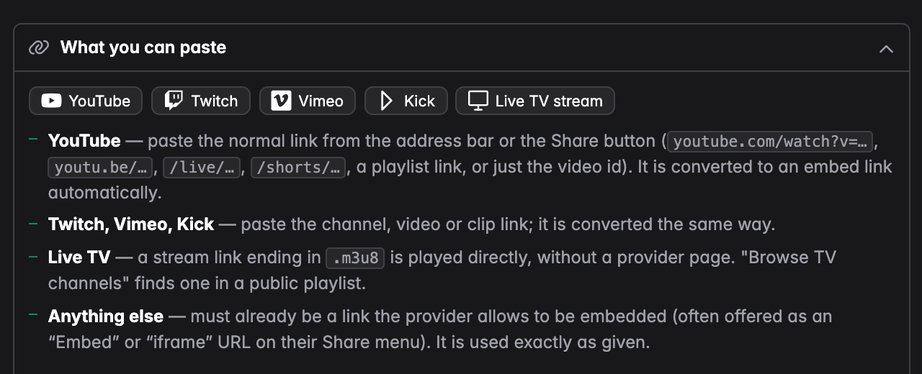
YouTube
Paste the link exactly as it comes out of the address bar or the Share button. All of these work:
| You have | Example |
|---|---|
| A normal watch link | https://www.youtube.com/watch?v=dQw4w9WgXcQ |
| A share short link | https://youtu.be/dQw4w9WgXcQ |
| A start time on either | …?v=dQw4w9WgXcQ&t=90 or &t=1m30s |
| A live stream | https://www.youtube.com/live/<id> |
| A short | https://www.youtube.com/shorts/<id> |
| A playlist | https://www.youtube.com/playlist?list=<id> |
| A channel's live page, by channel id | https://www.youtube.com/channel/UC…/live |
| Just the video id | dQw4w9WgXcQ |
A channel live link written with an @handle — youtube.com/@somechannel/live — cannot
be turned into an embed. Working out which video that handle is currently streaming
requires a YouTube API lookup that the display does not make.
Open the stream in a browser and copy the link from the address bar instead: while a channel is live, that gives you a normal watch link, which works.
Twitch, Vimeo and Kick
Paste the channel, video or clip link and it is converted the same way:
| Provider | Works with |
|---|---|
| Twitch | twitch.tv/<channel>, twitch.tv/videos/<id>, clip links, chat embeds |
| Vimeo | vimeo.com/<id>, including the privacy hash of an unlisted video |
| Kick | kick.com/<channel> |
Twitch refuses to play unless the embed names the site it is playing on. UHT fills that in
for you from the address the display is running at, so a Twitch embed works on
uht.app and on a locally hosted copy alike, with nothing to configure.
Live TV channels
A stream link ending in .m3u8 — the format live TV and IPTV playlists use — is not
embedded as a page. The display plays it itself, the way a TV app would, so there is no
provider page around it and no "embed" version to look for.
You do not have to find such links by hand. Browse TV channels, directly under the URL field, opens a channel picker:
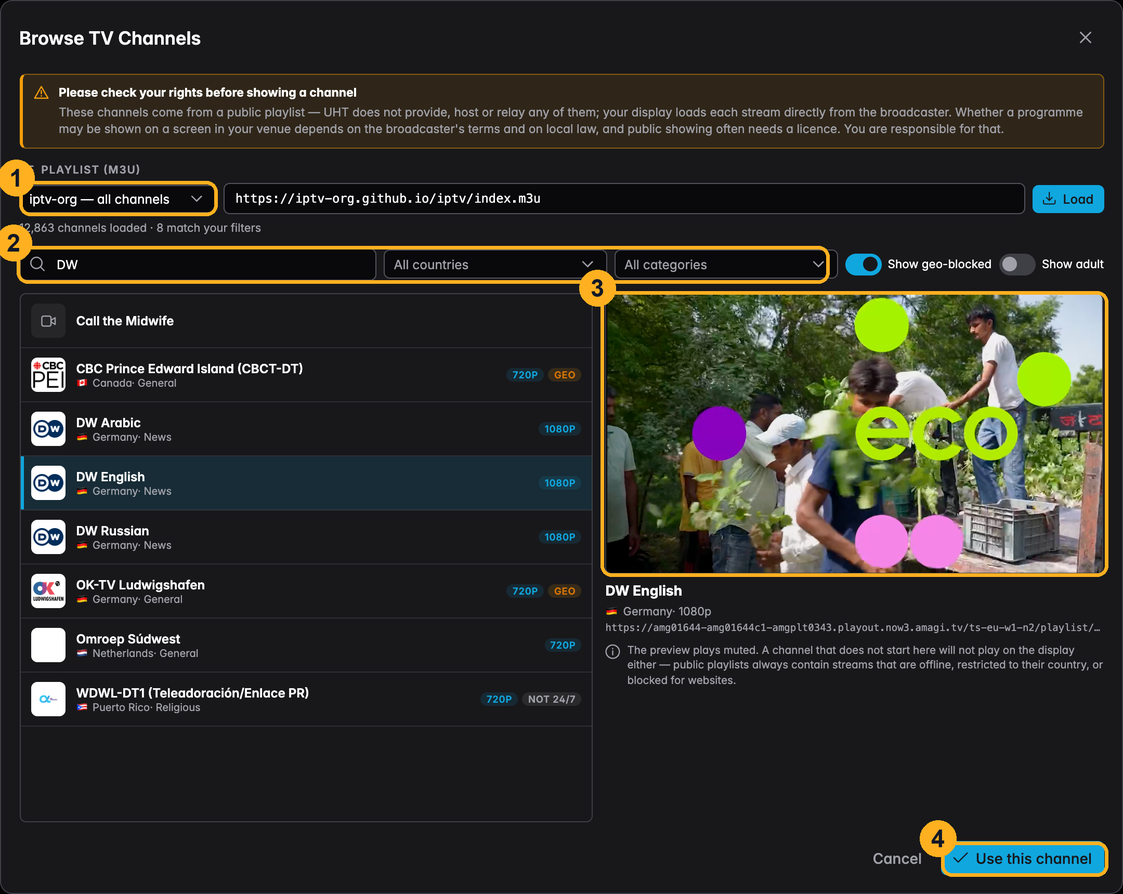
1 — The playlist. By default the public iptv-org list of freely available channels from all over the world — around 13,000 of them — with one-click presets for its sports, news, music and entertainment sections. Any other M3U playlist URL can be pasted into the field beside it and loaded.
2 — The filters. Narrow the list by name, country and category. Channels restricted to their own country are marked geo and can be hidden entirely; adult channels are hidden unless you switch them on.
3 — The preview, and the reason the picker exists. Selecting a channel plays it here, muted. Public playlists always contain streams that are offline, geo-restricted, or that refuse to be loaded by a website at all. A channel that does not start in this preview will not start on the display either — pick another one.
4 — Use this channel puts its link into the content field, where you apply it like any other.
UHT does not provide, host or relay any of these channels. Your display loads the stream straight from the broadcaster, exactly as a browser would. Whether a programme may be shown on a screen in your venue depends on the broadcaster's terms and on local law — showing TV in a public place often needs a licence. The picker and the content dialog remind you of this every time; please take it seriously.
Notes:
- Only https:// streams work. A display served securely cannot load an insecure stream, and browsers do not make exceptions for that — the picker hides such channels.
- Repeat and the YouTube privacy option have no meaning for a live stream and are not shown. Autoplay, Muted and Show player controls work as for any other content.
- DASH streams (
.mpd) are not supported.
Everything else
Any other link is used exactly as given. That means it has to already be an embeddable link — for most sites the page you are looking at and the page that can be embedded are two different URLs, and only the second one works. Look for Embed, iframe or Share on the provider's own page.
Playback options
| Option | What it does |
|---|---|
| Start playing automatically | Begins as soon as the display opens. |
| Muted | Locked on while autoplay is on — see below. |
| Repeat when finished | Restarts the video at the end. |
| Show player controls | Shows or hides the provider's own control bar. |
| Privacy-enhanced mode | YouTube only: loads from youtube-nocookie.com. |
Both of the options with a ? beside them are worth reading:
Muted. Browsers refuse to play sound that starts on its own. An embed set to autoplay therefore has to be muted, or it stops on its first frame and looks broken. Turn autoplay off if you want sound, and start the video from the display. Remember that the display is also playing the tournament's own level sounds and announcements, which an unmuted embed competes with.
Privacy-enhanced mode. Loads the video from youtube-nocookie.com. YouTube then stores
no personalised tracking cookies on the display until somebody actually starts the video,
which is what makes an embed easier to justify under GDPR in a public venue. Playback is
identical; only the recommendations at the end of a video are less personalised.
These options are honoured by the providers listed above. A generic embed link keeps whatever behaviour its own URL asks for.
Settings
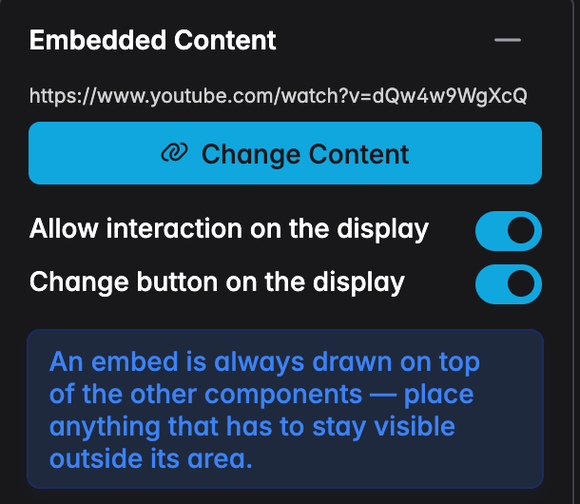
Beside the content itself, two switches control how the embed behaves on a display:
- Allow interaction on the display — off makes the embed click-through, so a stray tap on a touchscreen cannot pause the stream. Worth turning off for a screen mounted where people brush past it.
- Change button on the display — whether the Change Content button appears at all. Turn it off for a display nobody should be reconfiguring.
Changing the content during a tournament
Hover the component on a running display and a Change Content button appears in the middle of it.
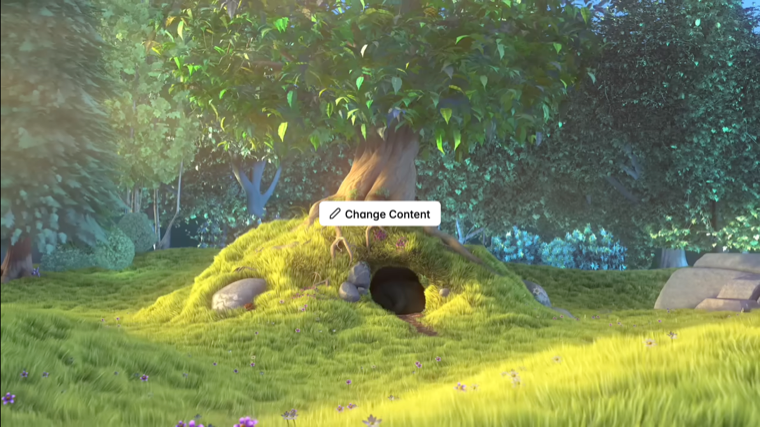
It opens the same dialog. Whatever you paste replaces the content immediately.
Two things about this are deliberate:
- The design is not modified. The new link is stored with the tournament, not with the design. Your saved design still holds the content you built it with, and the next tournament that uses it starts from that again. It also means the change survives a reload of the display.
- It is a controller-only button. In multi monitoring it appears on controller devices only. Whoever is running the tournament decides what every screen shows; a player who has opened the display link on their phone cannot change it.
Across multiple screens
| What | Behaviour |
|---|---|
| Changing the content | Applied to every connected display at once. |
| A display that connects later | Picks up the current content by itself. |
| YouTube play / pause / position | Mirrored, so every screen shows the same moment. |
| Any other provider | Every screen plays the same link independently. |
The last row is a limit of the web, not of UHT: a provider's player runs inside its own frame and cannot be driven from outside it. YouTube is the exception because it publishes an API for exactly this. For a live stream it makes no practical difference — every screen is showing the same live moment anyway.
If the display stays blank or white
This is the one problem worth knowing about in advance, because it looks like a bug and is not one. If the component stays empty after you apply a link, it is one of two things:
- The link is not an embeddable one. For most sites the page URL and the embed URL are different, and only the embed URL works.
- The provider blocks embedding. Many news sites, social networks and shops send a header that forbids their pages being shown inside another site. The browser refuses the frame; no setting in UHT can override that, and none should be able to.
To tell them apart: open the link in a normal browser tab. If it works there but not in the display, it is case 2 — look for an Embed option on the provider's own page, and use the link it offers. If there is no such option, that provider cannot be embedded at all.
Layout note
Unlike every other component, an embed is drawn on top of the rest of the design. A browser frame cannot be layered into the drawing the way a shape or a text component can.
In practice that means anything which must stay readable belongs outside the embed's area, and a background behind it is only visible while it has no content.
Next
- Components — everything else the designer offers
- Multi monitoring — running several screens from one tournament
- Display conditions — showing the embed only sometimes